

Overview
In this tutorial, you’ll learn how to add evaluations with Galileo to an existing multi-agent LangGraph app. This tutorial is intended for Python LangGraph developers who already have an app and are looking to add evaluation. It assumes you have basic knowledge of:- Python
- LangGraph
- Setting up a project and metrics in Galileo
- Add Galileo evaluations to a multi-agent LangGraph app
- View and understand session level metrics
Background
This tutorial uses an existing banking chatbot app powered by Chainlit and LangGraph. This is a very simplistic example of a chatbot for a fictitious bank. It is a multi-agent app, with a supervisor agent, and a single additional agent that can be used to answer questions on the credit cards offered by the bank. This agent uses some dummy credit card documents stored in a Pinecone vector database. For example, you can ask questions like “What credit cards do you offer?” or “Which card has the lowest annual fee?” These are the 2 agents:- Credit card information agent This agent provides information on the available credit cards. The credit card documentation that the agent uses is stored in a Pinecone vector database.
- Supervisor agent
app.py- This contains the main application logic for a Chainlit app. It has anon_chat_startfunction that is called whenever a new chat is started, and amainfunction that is called whenever a message is sent.src/galileo_langgraph_fsi_agent/agents/supervisor_agent.py- This is a LangGraph supervisor agent that manages the other agents, routing messages where needed. This is configured to use GPT-4.1-mini.src/galileo_langgraph_fsi_agent/agents/credit_card_information_agent.py- This is a LangGraph agent that uses a tool to extract information about the available credit cards from Pinecone. This is also configured to use GPT-4.1-mini.src/galileo_langgraph_fsi_agent/tools/pinecone_retrieval_tool.py- This is a LangGraph tool that interacts with the Pinecone vector database. It is called by thecredit_card_information_agent.
Before you start
Before you start the tutorial, you will need:- The starter project - Clone the Galileo SDK-Examples repo. This repo contains both the starting LangGraph app that you will be adding Galileo evaluations to, as well as a final version for reference.
- A Pinecone account and API key - If you don’t have an existing Pinecone account, head to Pinecone.io, sign up for a free account, and get an API key.
- An OpenAI API key - This example uses OpenAI as the underlying LLM to run the agents.
- A Galileo API key - To access your Galileo API keys, open the Galileo Console and log in or create an account. From the Settings and Users page you can create a new API key.
Set up the project
The starter project is in thesdk-examples/python/agent/langgraph-fsi-agent/before folder in the cloned repo.
Install the dependencies that are defined in the pyproject.toml.
Create a virtual environment, and install these dependencies using a tool such as
uv:Configure your .env file.
Copy the Replace
.env.example file to .env, and set the values for your OpenAI and Pinecone API keys:<Your OpenAI API key> with your OpenAI API key. Replace <Your Pinecone API key> with your Pinecone API key.Upload the dummy credit card documentation to Pinecone using the provided helper script.
Run the project to test it out.
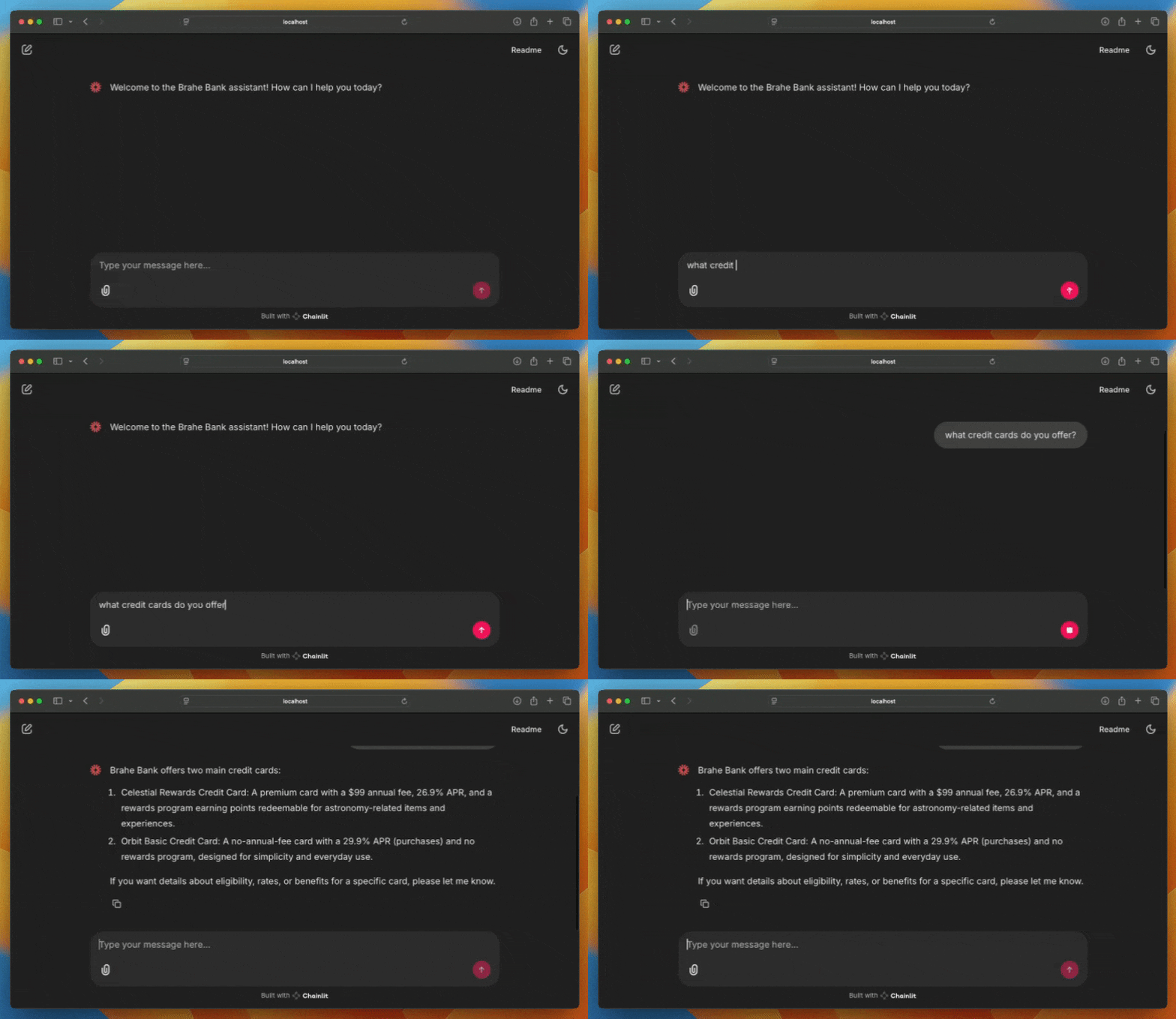
Create a new Galileo project
First you need a new Galileo project to log evaluations to.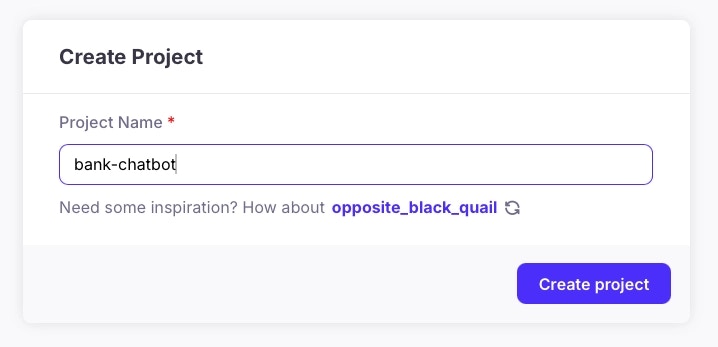
Install the Galileo Python package
To send data to Galileo, you need to use the Galileo Python package.Install the Galileo Python package in your virtual environment.
Add the following Galileo environment variables to your .env file.
<Your Galileo API key> with your Galileo API key. The project is set to the new project you just created, and the Log stream is set to chatbot-logs.You don’t need to create the Log stream in advance, a new Log stream will be created automatically.
Add logging to Galileo
Next you need to add code to log to Galileo. Galileo has a LangGraph callback handler that can be passed into the agent to automatically log traces for every step in the chain, including agent calls, tool calls, and LLM calls.You can find a complete version of this code with all the code added in the
sdk-examples/python/agent/langgraph-fsi-agent/after folder in the cloned repo.Add the logging code
Start a Galileo session.
In the This creates a new session named “FSI Agent - {time}” with the current date and time. This also sets the
on_chat_start function in app.py, add the following code to create a new logging session:external_id to the current Chainlit session ID. Each separate conversation in Chainlit is a separate session with a unique ID.Create a callback handler.
After the code you just added, add the following to create the callback handler, and save it in the Chainlit session:This creates the callback handler, and saves it against the current user session.
The Galileo logging handlers use the current thread context to connect to the current Galileo context. This means to have a callback handler tied to a session, it needs to be created in the same thread as the session. It can then be access from any other thread.
Pass the callback handler to LangGraph.
In the With the following:This will extract the Galileo callback from the user session, and adds it to a callbacks collection. This collection is passed to the LangGraph
main function, replace this line:RunnableConfig that is passed when the supervisor agent is used.Run the app
Run the app.
View the traces
View the session in Galileo.
Open the Galileo Console and select your project. In the Sessions tab you should see a single session created for the conversation.
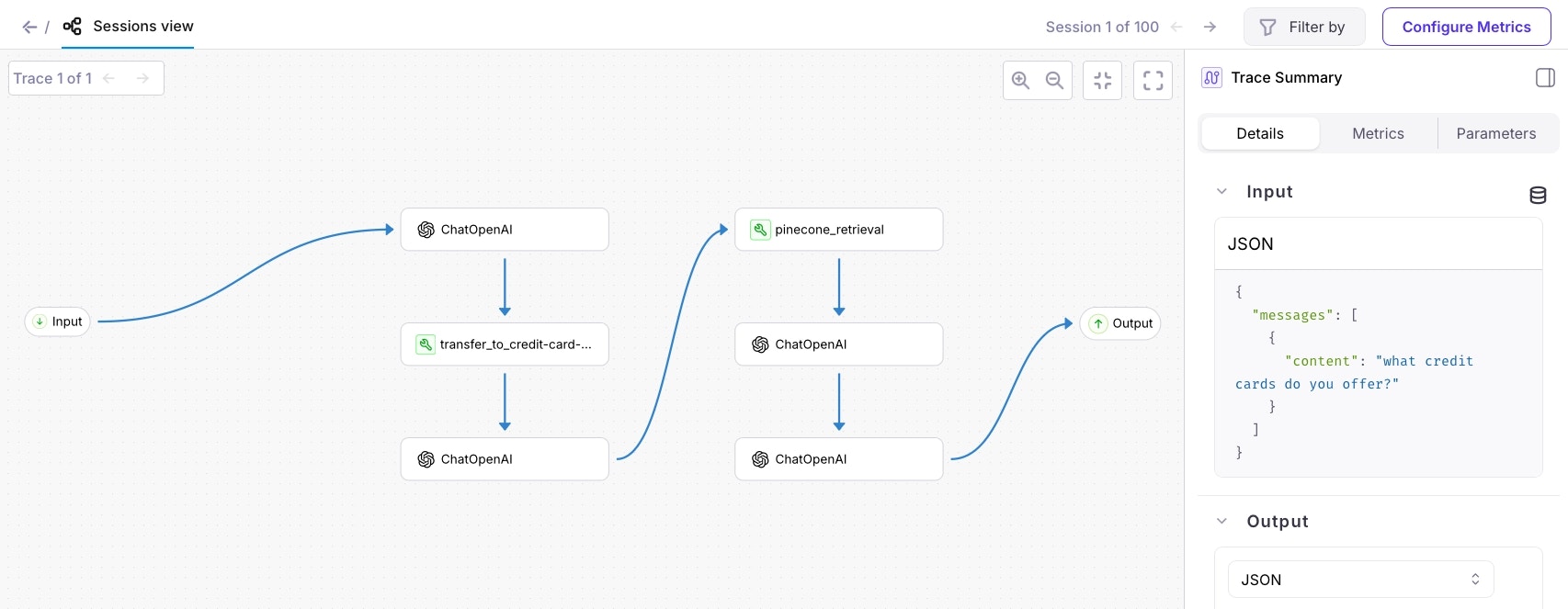
Add more traces to the session
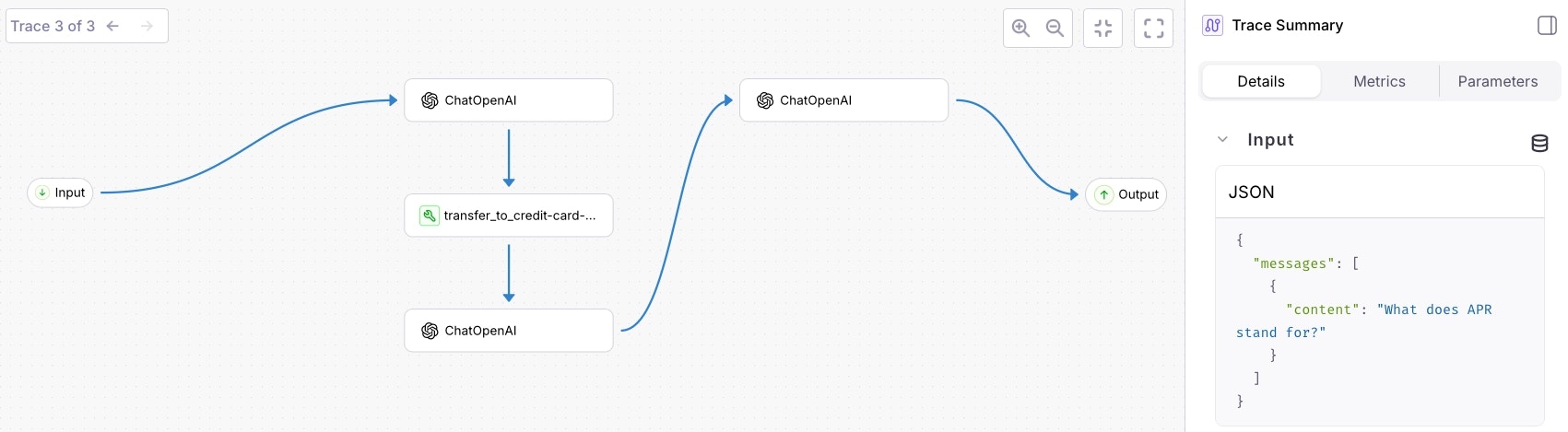
Sessions can contain multiple traces. For example, a single user conversation with your bot would be a single session, containing multiple traces for the different questions you ask the bot.Follow this up with a third question that does not involve specific information about the credit cards, such as 'What does APR stand for?'
View the session in the Galileo Console.
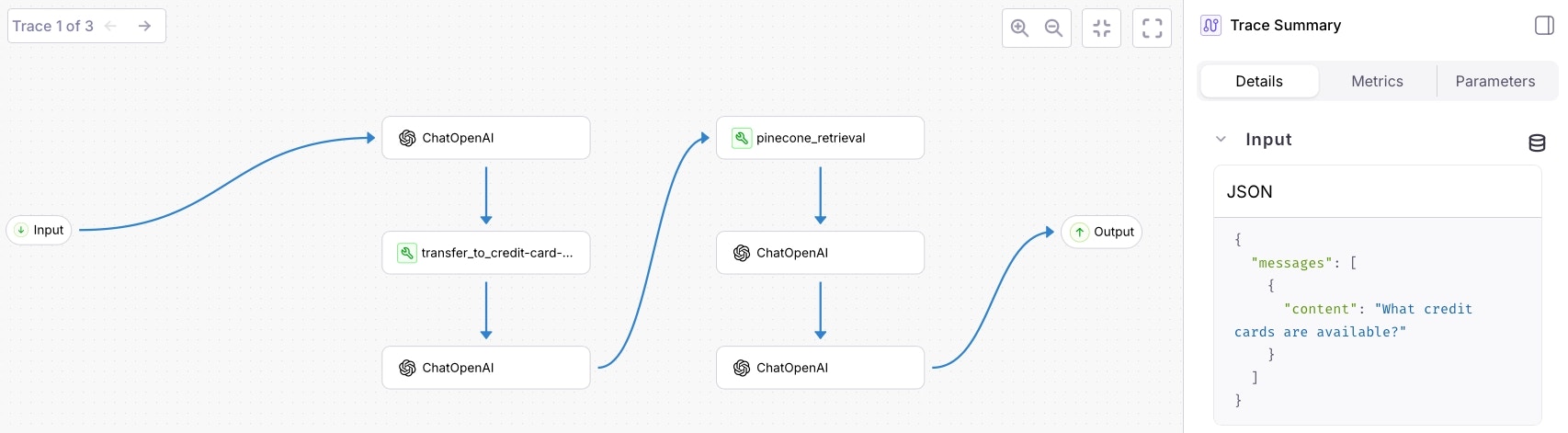
Summary
In this tutorial, you learned how to:- Add Galileo evaluations to a multi-agent LangGraph app
- View and navigate session level traces