> ## Documentation Index
> Fetch the complete documentation index at: https://docs.galileo.ai/llms.txt
> Use this file to discover all available pages before exploring further.
# Set Up Alerts on Logs
> Learn how to set up alerts and be automatically notified when things go wrong
{/**/}
## Overview
Galileo enables you to get alerted whenever unexpected things happen. For example:
* Your cost is higher than expected
* Your model is hallucinating more than you want
* Users are entering foul language into your app
To successfully set up an alert, you will need to have [logged your first trace](/getting-started/quickstart).
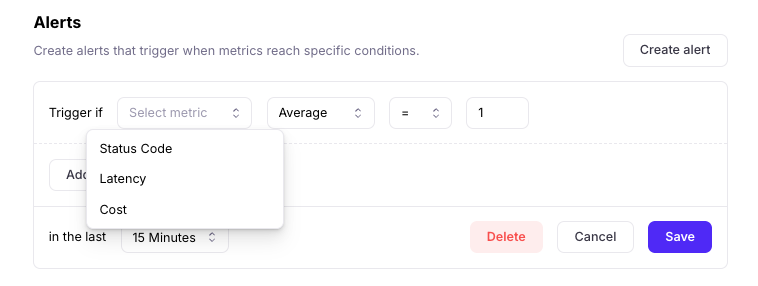 These system metrics are available for alerts by default: Status Code, Cost, Latency.
[Add metrics](/concepts/metrics/overview) to enable more alerts.
## Example alerts
Each alert configuration includes:
* a metric e.g. Cost, Correctness, Context Adherence
* an aggregation function: Average, Minimum, Maximum, Count, Sum
* a threshold e.g. \< 0.5
* a time window e.g. 1 hour
These system metrics are available for alerts by default: Status Code, Cost, Latency.
[Add metrics](/concepts/metrics/overview) to enable more alerts.
## Example alerts
Each alert configuration includes:
* a metric e.g. Cost, Correctness, Context Adherence
* an aggregation function: Average, Minimum, Maximum, Count, Sum
* a threshold e.g. \< 0.5
* a time window e.g. 1 hour
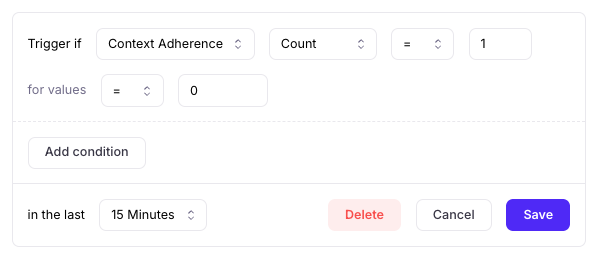 A few example alerts:
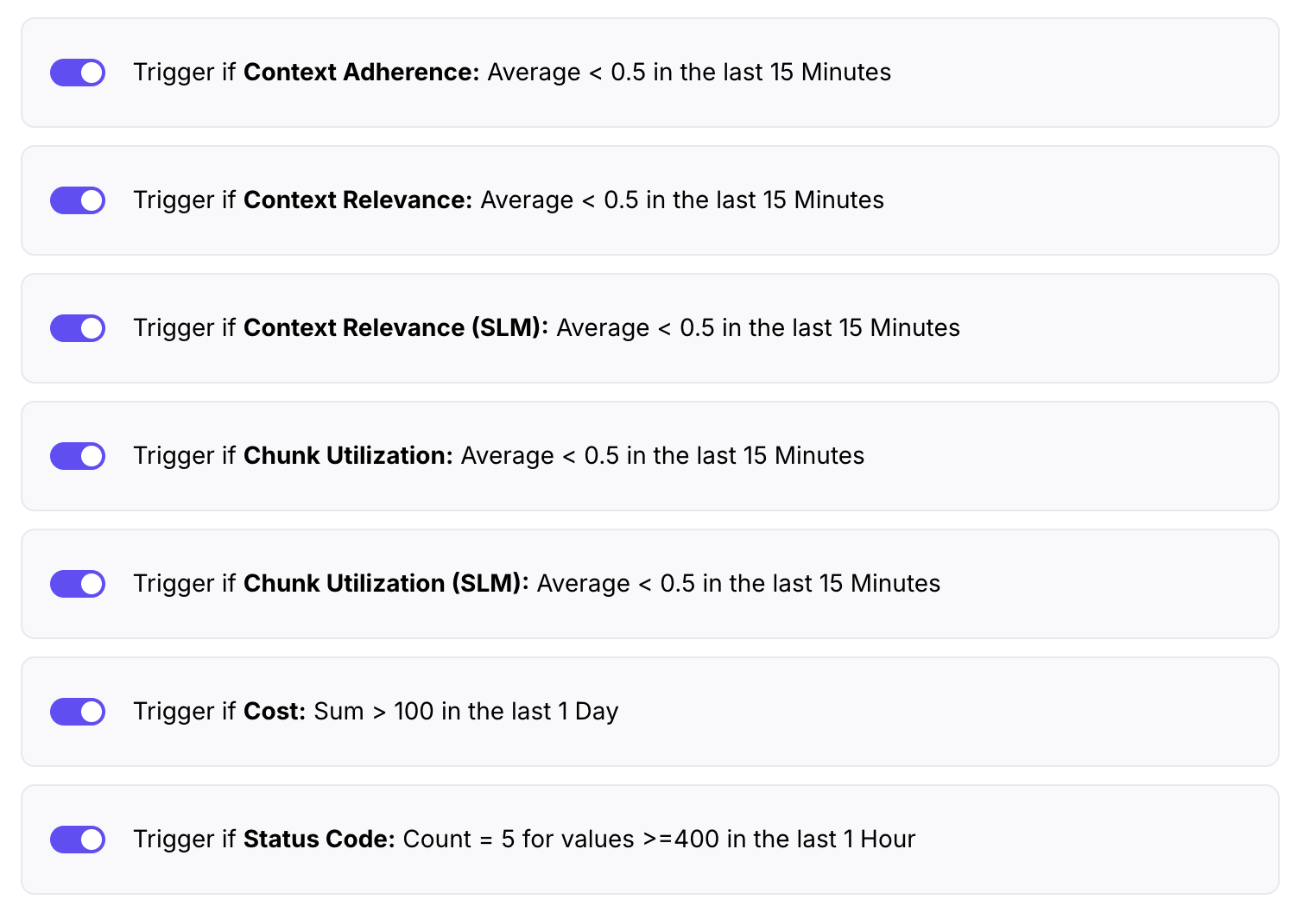
* Exceeding costs: If you want to get alerted with an uptick in cost (above \$100/day), select `Cost` Sum > 100 in the last day
* Hallucinations: If you want to get alerted when there's an extreme hallucination, select `Correctness` or `Context Adherence` Count = 1 for values = 0 in the last 15 minutes.
* Hallucination average: If you want to get alerted when hallucinations are probable (e.g. more than 50% below perfect threshold), select `Correctness` or `Context Adherence` Average \< 0.5 in the last 1 hour.
More example alerts are shown below:
A few example alerts:
* Exceeding costs: If you want to get alerted with an uptick in cost (above \$100/day), select `Cost` Sum > 100 in the last day
* Hallucinations: If you want to get alerted when there's an extreme hallucination, select `Correctness` or `Context Adherence` Count = 1 for values = 0 in the last 15 minutes.
* Hallucination average: If you want to get alerted when hallucinations are probable (e.g. more than 50% below perfect threshold), select `Correctness` or `Context Adherence` Average \< 0.5 in the last 1 hour.
More example alerts are shown below:
 ## Email notifications
To set up email alerts, add your recipients’ email addresses.
## Email notifications
To set up email alerts, add your recipients’ email addresses.
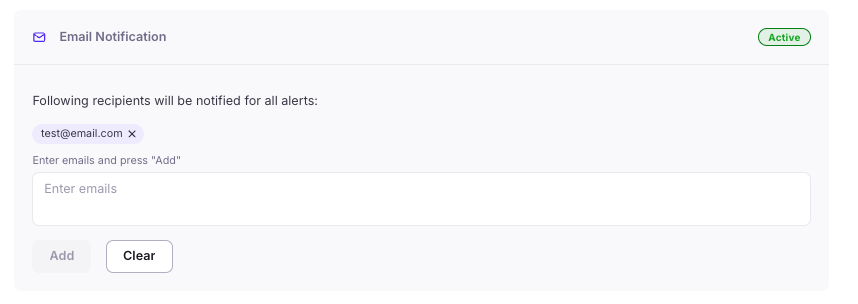 When emails have been added, the top right corner of the section will show "Active".
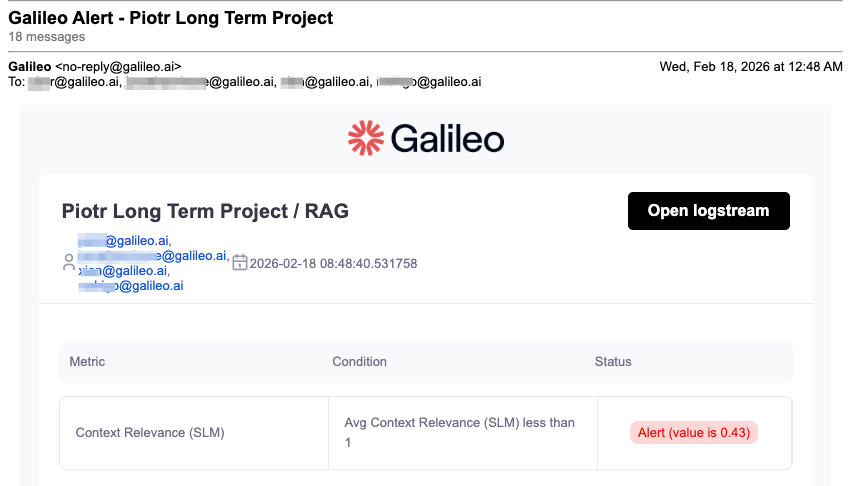
From the email notification (example below), you can click on the "Open Log Stream" button to find the problematic traces.
When emails have been added, the top right corner of the section will show "Active".
From the email notification (example below), you can click on the "Open Log Stream" button to find the problematic traces.
 ## Slack notifications
To set up Slack alerts, you'll need to configure your workspace to receive Slack messages via webhook URLs.
Follow Slack's instructions to generate a webhook URL.
A few pointers:
1. [Create a Slack app](https://api.slack.com/apps/new). If you don't have an existing manifest file, choose the "From scratch" option to create the app.
2. Pick an App Name like "Galileo Alerts" that will help identify the Slack app that the notifications will come from.
3. Go to the "Incoming Webhooks" page of your Slack app (under "Features"), and enable the toggle to "Activate Incoming Webhooks".
4. Click "Add New Webhook" and choose the Slack channel you'd like Galileo's Alerts to go to. (You can also test the webhook by direct messaging your user account.)
## Slack notifications
To set up Slack alerts, you'll need to configure your workspace to receive Slack messages via webhook URLs.
Follow Slack's instructions to generate a webhook URL.
A few pointers:
1. [Create a Slack app](https://api.slack.com/apps/new). If you don't have an existing manifest file, choose the "From scratch" option to create the app.
2. Pick an App Name like "Galileo Alerts" that will help identify the Slack app that the notifications will come from.
3. Go to the "Incoming Webhooks" page of your Slack app (under "Features"), and enable the toggle to "Activate Incoming Webhooks".
4. Click "Add New Webhook" and choose the Slack channel you'd like Galileo's Alerts to go to. (You can also test the webhook by direct messaging your user account.)
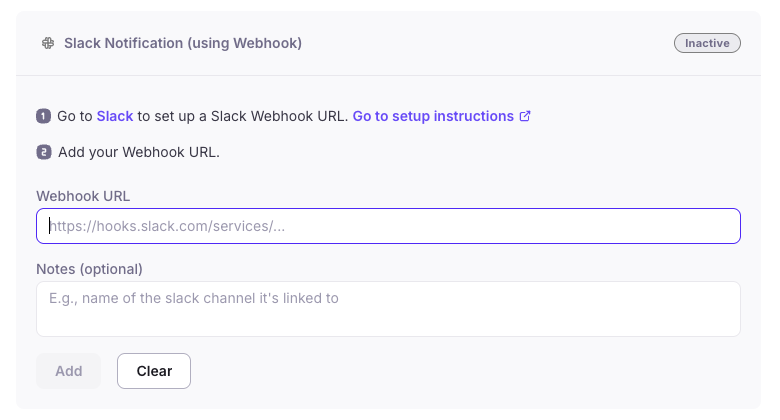 1. Copy the generated webhook URL from Slack, and paste it into Galileo's Slack Notification section.
2. In the "Notes" section, add the name of the channel that's getting notified.
1. Copy the generated webhook URL from Slack, and paste it into Galileo's Slack Notification section.
2. In the "Notes" section, add the name of the channel that's getting notified.
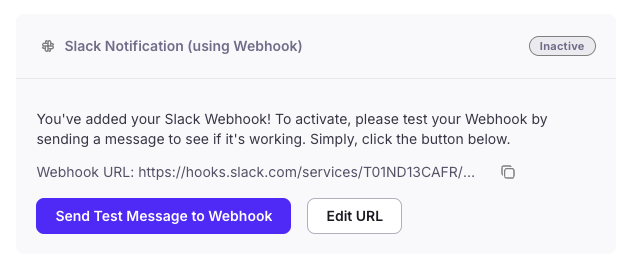 1. Try sending a test message to webhook to verify the connection.
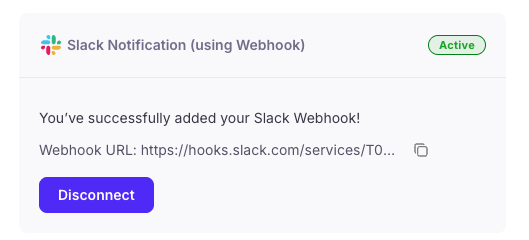 When a Slack notification have been added, the top right corner of the section will show "Active".
## Generic webhook notifications
Generic webhooks let you send Galileo alert events to any HTTP endpoint — for example, a custom alerting system, an incident management platform like PagerDuty or IBM Tivoli Netcool/OMNIbus, or an internal automation pipeline.
Unlike Slack notifications (which are formatted for human reading), generic webhooks deliver a structured JSON payload designed for machine consumption. Every delivery includes the exact metric value that triggered the alert, a unique `dedup_key` for correlating trigger and clear events, and a `metadata` field you control. You can use the `metadata` field to route events to the right team or tag payloads with environment context.
### Configure the webhook
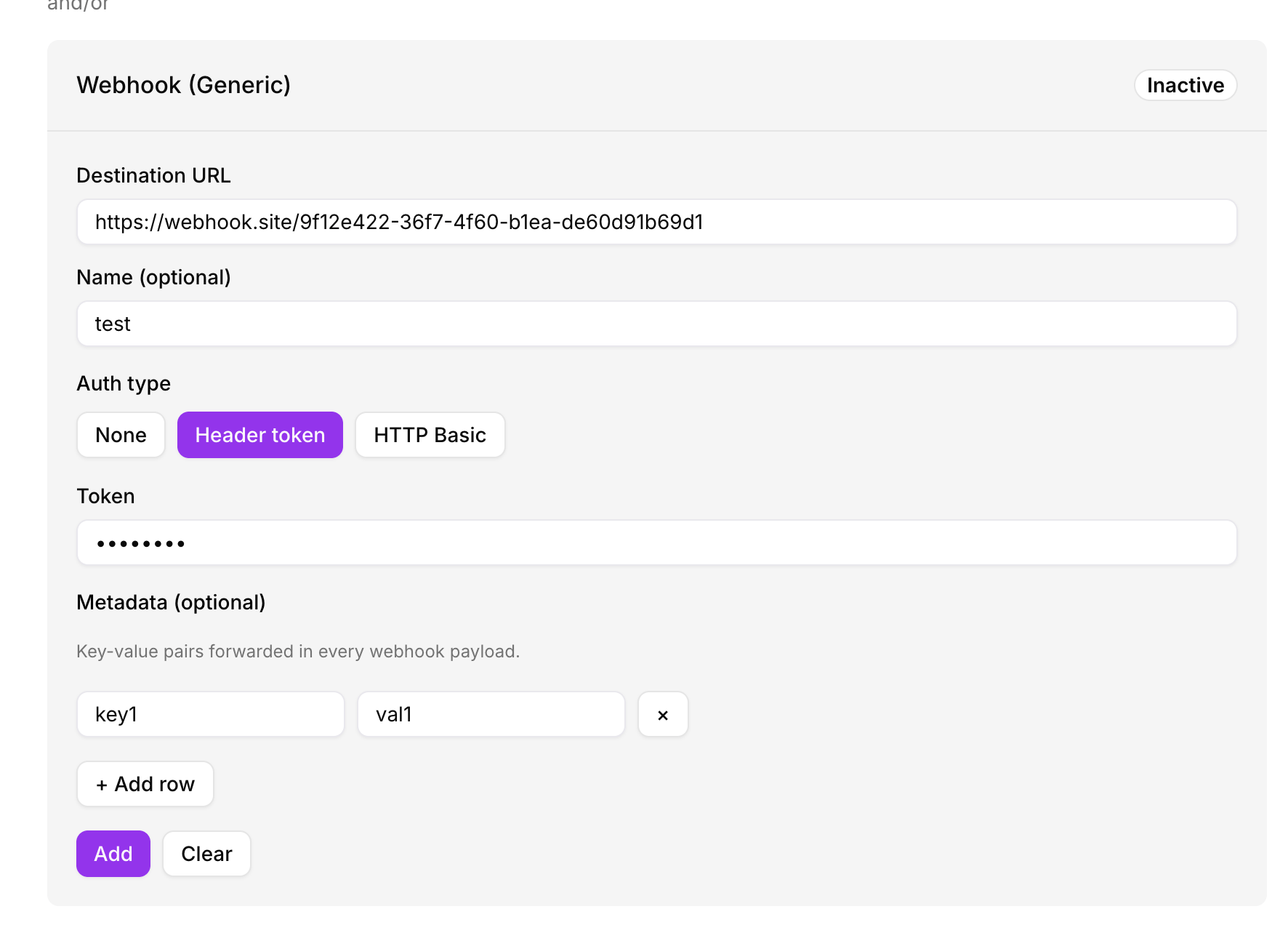
1. In the **Webhook (Generic)** section, enter the destination URL of your endpoint.
2. Optionally, add a **Name** to identify this webhook (for example, `PagerDuty - Platform Team`).
3. Select an **Auth type**:
* **None** — no authentication headers are added.
* **Header token** — adds an `Authorization: Bearer ` header. Enter your token in the **Token** field.
* **HTTP Basic** — adds a `Basic` auth header. Enter your **Username** and **Password**.
The token or password is write-only. Galileo never returns it after saving. If you edit the webhook later, you will need to re-enter the credential to save changes.
4. Optionally, add **Metadata** key-value pairs. These are forwarded unchanged in the `metadata` field of every payload Galileo sends to this endpoint. Use this to attach routing or context information your downstream system needs — for example:
| Key | Value |
| --------- | ------------ |
| `team` | `platform` |
| `env` | `production` |
| `service` | `my-llm-app` |
Your system receives these fields as-is inside the payload, so you can use them to route alerts, filter noise, or set incident priority without having to parse the alert content.
5. Click **Add** to save the webhook.
When a Slack notification have been added, the top right corner of the section will show "Active".
## Generic webhook notifications
Generic webhooks let you send Galileo alert events to any HTTP endpoint — for example, a custom alerting system, an incident management platform like PagerDuty or IBM Tivoli Netcool/OMNIbus, or an internal automation pipeline.
Unlike Slack notifications (which are formatted for human reading), generic webhooks deliver a structured JSON payload designed for machine consumption. Every delivery includes the exact metric value that triggered the alert, a unique `dedup_key` for correlating trigger and clear events, and a `metadata` field you control. You can use the `metadata` field to route events to the right team or tag payloads with environment context.
### Configure the webhook
1. In the **Webhook (Generic)** section, enter the destination URL of your endpoint.
2. Optionally, add a **Name** to identify this webhook (for example, `PagerDuty - Platform Team`).
3. Select an **Auth type**:
* **None** — no authentication headers are added.
* **Header token** — adds an `Authorization: Bearer ` header. Enter your token in the **Token** field.
* **HTTP Basic** — adds a `Basic` auth header. Enter your **Username** and **Password**.
The token or password is write-only. Galileo never returns it after saving. If you edit the webhook later, you will need to re-enter the credential to save changes.
4. Optionally, add **Metadata** key-value pairs. These are forwarded unchanged in the `metadata` field of every payload Galileo sends to this endpoint. Use this to attach routing or context information your downstream system needs — for example:
| Key | Value |
| --------- | ------------ |
| `team` | `platform` |
| `env` | `production` |
| `service` | `my-llm-app` |
Your system receives these fields as-is inside the payload, so you can use them to route alerts, filter noise, or set incident priority without having to parse the alert content.
5. Click **Add** to save the webhook.
 ### Test the connection
After saving, the webhook shows as **Configured**. Click **Send test event** to send a synthetic alert payload to your endpoint.
### Test the connection
After saving, the webhook shows as **Configured**. Click **Send test event** to send a synthetic alert payload to your endpoint.
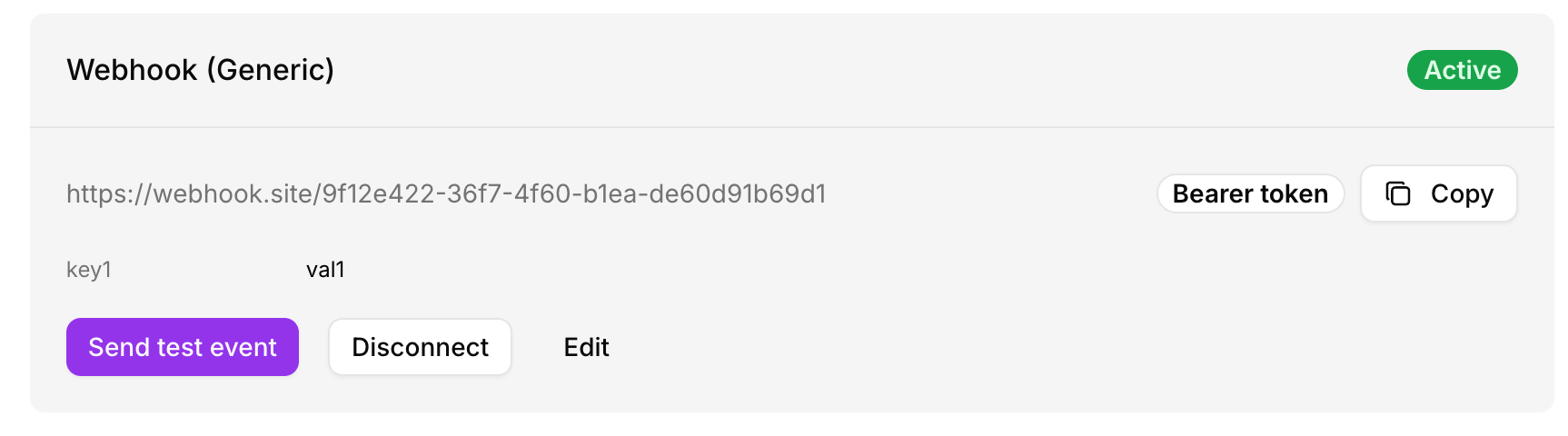
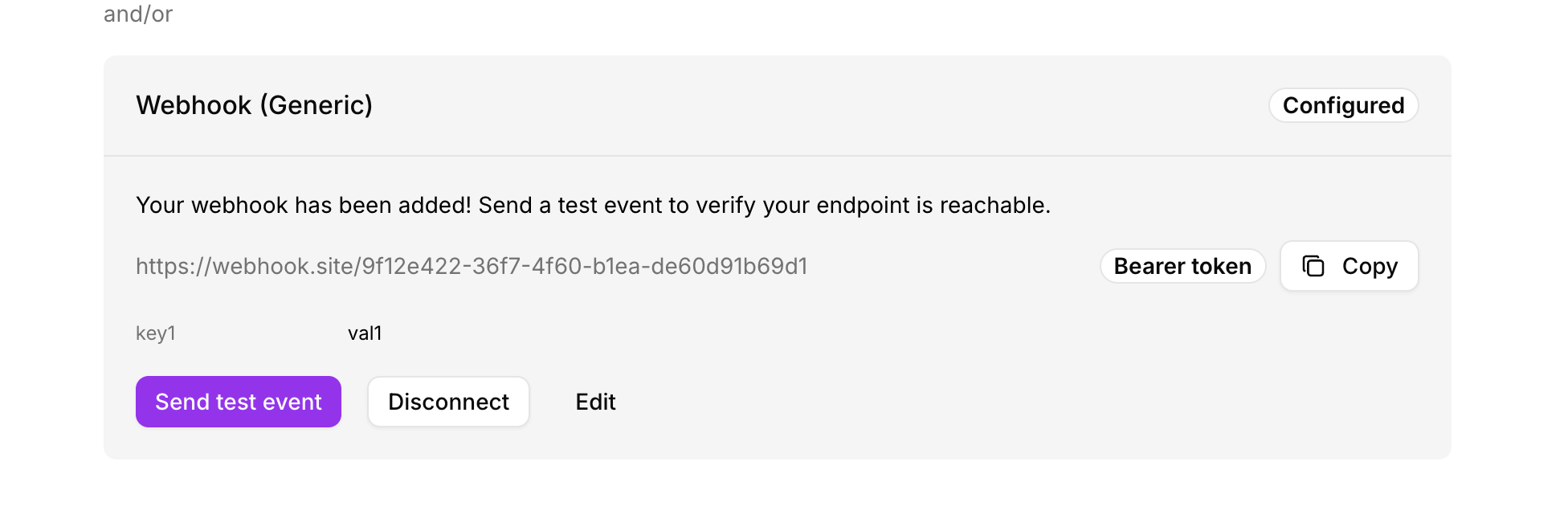 If your endpoint responds successfully, the badge updates to **Active**.
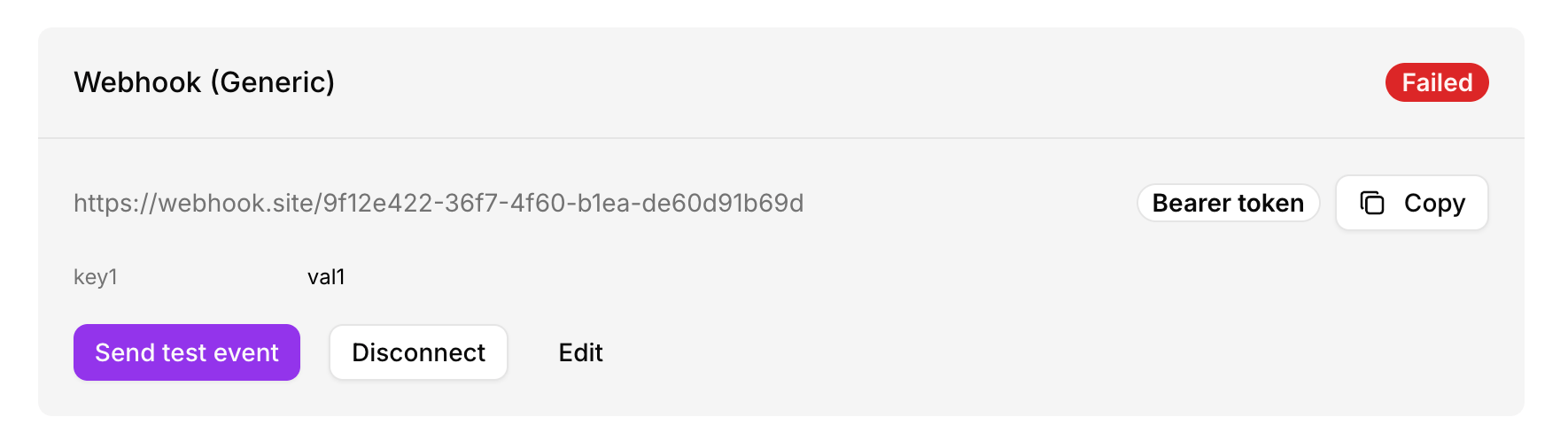
 If your endpoint does not respond successfully, the badge updates to **Failed**. Check the URL and auth settings, then click **Send test event** again to retry.
 ### Webhook payload
When an alert triggers, Galileo sends a `POST` request to your endpoint with a JSON body in the following format:
```json theme={null}
{
"version": "1.0",
"event": "alert.triggered",
"event_id": "a1b2c3d4-...",
"timestamp": "2024-01-15T10:30:00Z",
"alert": {
"id": "alert-id",
"name": "High hallucination rate",
"status": "triggered",
"previous_status": "healthy"
},
"scope": {
"org_id": "your-org-id",
"project_id": "your-project-id",
"project_name": "My Project",
"log_stream_id": "your-log-stream-id",
"log_stream_name": "production"
},
"conditions": [
{
"metric": "metrics/context_adherence",
"aggregation": "Average",
"operator": "less than",
"threshold": 0.5,
"observed_value": 0.34
}
],
"dedup_key": "alert-id:project-id:log-stream-id",
"deep_link": "https://console.galileo.ai/project/.../log-streams/...",
"metadata": {
"team": "platform",
"env": "production",
"service": "my-llm-app"
}
}
```
Key fields to note:
* **`conditions[].observed_value`** — the actual metric value at the time of the alert, not just the threshold. Use this to set incident severity or include it in notification copy.
* **`dedup_key`** — stable identifier for this alert instance. Use it to correlate a trigger event with its corresponding clear event, or to avoid duplicate re-deliveries.
* **`deep_link`** — a direct link into the Galileo console scoped to the time window and filters active when the alert fired.
* **`metadata`** — the key-value pairs you configured on the webhook. Forwarded unchanged so your system can route or annotate without parsing alert content.
* **`version`** — always `"1.0"`. Will be incremented if the payload structure changes in a breaking way.
### Webhook payload
When an alert triggers, Galileo sends a `POST` request to your endpoint with a JSON body in the following format:
```json theme={null}
{
"version": "1.0",
"event": "alert.triggered",
"event_id": "a1b2c3d4-...",
"timestamp": "2024-01-15T10:30:00Z",
"alert": {
"id": "alert-id",
"name": "High hallucination rate",
"status": "triggered",
"previous_status": "healthy"
},
"scope": {
"org_id": "your-org-id",
"project_id": "your-project-id",
"project_name": "My Project",
"log_stream_id": "your-log-stream-id",
"log_stream_name": "production"
},
"conditions": [
{
"metric": "metrics/context_adherence",
"aggregation": "Average",
"operator": "less than",
"threshold": 0.5,
"observed_value": 0.34
}
],
"dedup_key": "alert-id:project-id:log-stream-id",
"deep_link": "https://console.galileo.ai/project/.../log-streams/...",
"metadata": {
"team": "platform",
"env": "production",
"service": "my-llm-app"
}
}
```
Key fields to note:
* **`conditions[].observed_value`** — the actual metric value at the time of the alert, not just the threshold. Use this to set incident severity or include it in notification copy.
* **`dedup_key`** — stable identifier for this alert instance. Use it to correlate a trigger event with its corresponding clear event, or to avoid duplicate re-deliveries.
* **`deep_link`** — a direct link into the Galileo console scoped to the time window and filters active when the alert fired.
* **`metadata`** — the key-value pairs you configured on the webhook. Forwarded unchanged so your system can route or annotate without parsing alert content.
* **`version`** — always `"1.0"`. Will be incremented if the payload structure changes in a breaking way.