> ## Documentation Index
> Fetch the complete documentation index at: https://docs.galileo.ai/llms.txt
> Use this file to discover all available pages before exploring further.
# Metrics overview
> Browse and register custom metrics across your project.
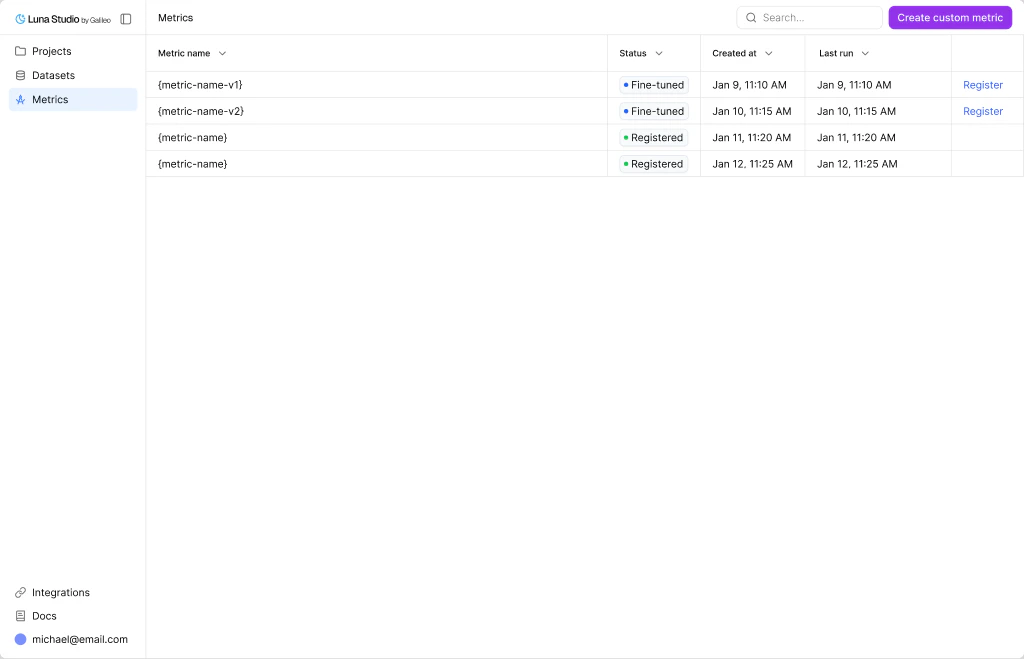
The **Metrics** page (sidebar → **Metrics**) is where you see all the finetuned / registered metrics from all projects. This serves as a single pane to view the true power of Luna Studio and how it has helped you.
 ## Register a metric
Once a metric reaches **Fine-tuned**, the **Register metric** action appears in the row's Actions cell. Clicking it opens the same modal documented in [Register a metric](/luna-studio/ui/runs/register-metric).
## Where to go next
Pick a template or write a custom prompt in the run creation flow.
The five statuses runs and metrics flow through.
Publish a Fine-tuned metric to the Galileo metrics store.
Launch a training run that produces a metric.
## Register a metric
Once a metric reaches **Fine-tuned**, the **Register metric** action appears in the row's Actions cell. Clicking it opens the same modal documented in [Register a metric](/luna-studio/ui/runs/register-metric).
## Where to go next
Pick a template or write a custom prompt in the run creation flow.
The five statuses runs and metrics flow through.
Publish a Fine-tuned metric to the Galileo metrics store.
Launch a training run that produces a metric.