> ## Documentation Index
> Fetch the complete documentation index at: https://docs.galileo.ai/llms.txt
> Use this file to discover all available pages before exploring further.
# Step 2 — Test set
> Pick or upload the labelled dataset Luna Studio will evaluate the fine-tuned metric against.
The test set is the **ground truth** for the run. After training, Luna Studio scores the resulting metric against this dataset and reports F1, AUC-ROC, and other result metrics on the Run details page.
 ## Pick an existing test set
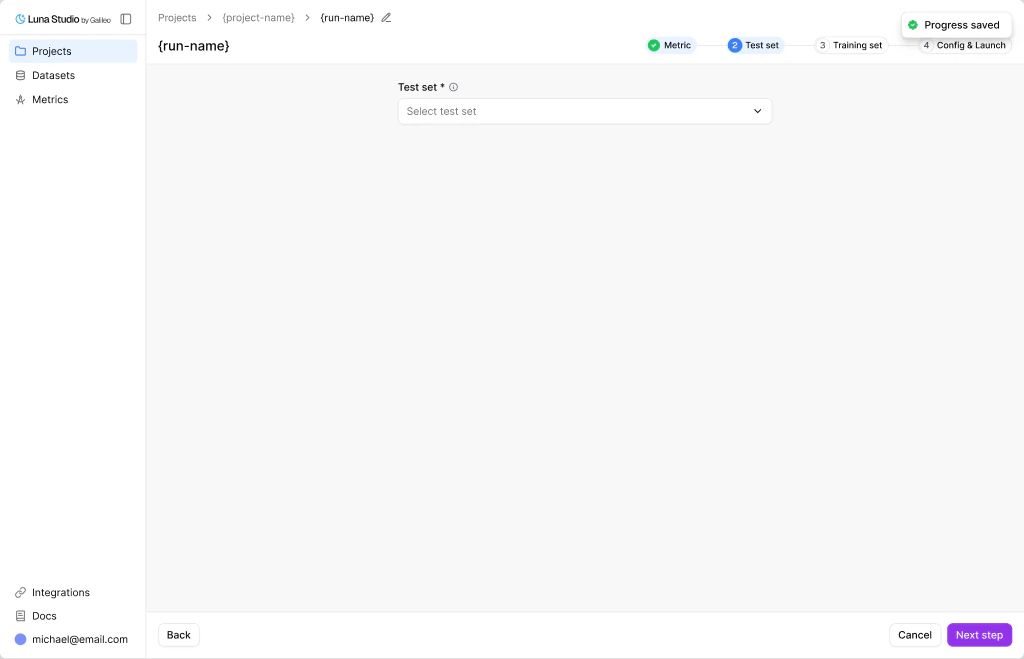
The **Test set** select shows test sets already added to your organization. Each option includes a row count and source label, e.g. `rag-eval-dataset-v2 — 320 rows · Uploaded`.
Type into the select to filter by name.
## Add a new test set
If you don't have one yet, click the dropdown's **Add new test set** action. The **Add test set** modal opens.
The modal title is **Add test set** with the subtitle "Test sets are curated labelled examples used to evaluate your metric." Three sources are available — see [Add a dataset](/luna-studio/ui/datasets/add-a-dataset) for a complete reference.
Drag-and-drop a `.csv` or `.jsonl` file. Use CSV for end-to-end run processing.
Paste a publicly reachable or pre-signed `http://` or `https://` URL.
Browse datasets in your connected Galileo workspace.
Required columns depend on the metric shape. For details, see [Prerequisites](/luna-studio/ui/prerequisites).
Test sets must contain at least 300 rows total and at least 100 examples per class.
The source picker accepts JSONL during ingestion, but current metric-aware validation reads the stored file as CSV. Convert JSONL to CSV before using it as the run's test set.
Importing from Galileo requires a deployment-configured [Galileo API connection](/luna-studio/ui/integrations/galileo). If an inline prompt does not clear the backend error, ask your deployment operator to configure the URL and key.
## Validation
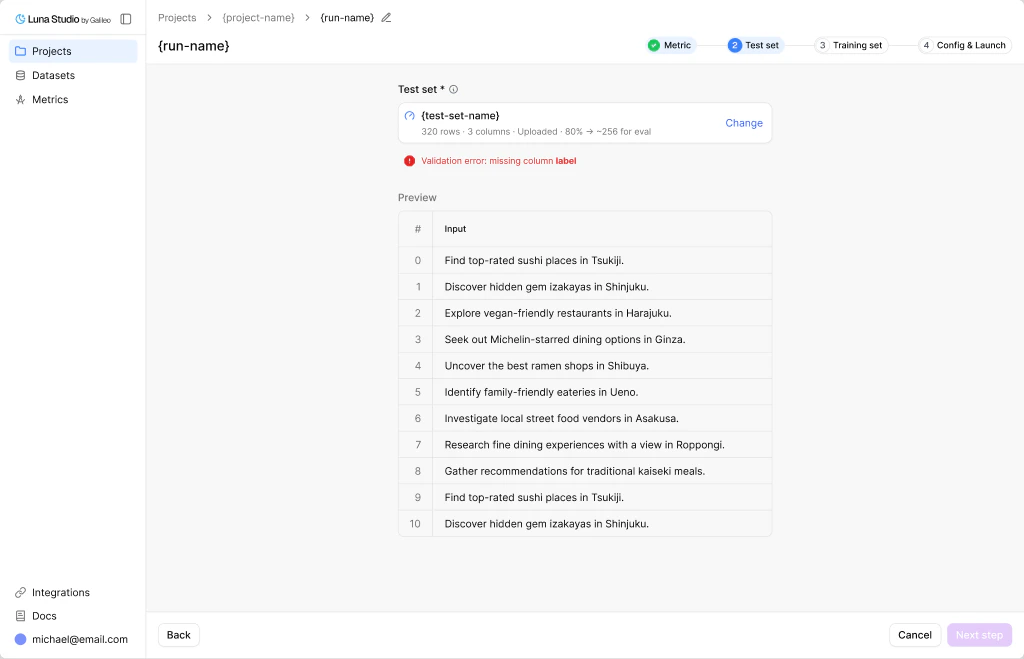
Because this flow has the selected metric as context, Luna Studio validates the test set's shape-specific columns, label type, and row thresholds before attaching it to the run. If there are validation errors, they are highlighted. The uploaded dataset can remain available on the global Datasets page even when it is rejected for this run.
## Pick an existing test set
The **Test set** select shows test sets already added to your organization. Each option includes a row count and source label, e.g. `rag-eval-dataset-v2 — 320 rows · Uploaded`.
Type into the select to filter by name.
## Add a new test set
If you don't have one yet, click the dropdown's **Add new test set** action. The **Add test set** modal opens.
The modal title is **Add test set** with the subtitle "Test sets are curated labelled examples used to evaluate your metric." Three sources are available — see [Add a dataset](/luna-studio/ui/datasets/add-a-dataset) for a complete reference.
Drag-and-drop a `.csv` or `.jsonl` file. Use CSV for end-to-end run processing.
Paste a publicly reachable or pre-signed `http://` or `https://` URL.
Browse datasets in your connected Galileo workspace.
Required columns depend on the metric shape. For details, see [Prerequisites](/luna-studio/ui/prerequisites).
Test sets must contain at least 300 rows total and at least 100 examples per class.
The source picker accepts JSONL during ingestion, but current metric-aware validation reads the stored file as CSV. Convert JSONL to CSV before using it as the run's test set.
Importing from Galileo requires a deployment-configured [Galileo API connection](/luna-studio/ui/integrations/galileo). If an inline prompt does not clear the backend error, ask your deployment operator to configure the URL and key.
## Validation
Because this flow has the selected metric as context, Luna Studio validates the test set's shape-specific columns, label type, and row thresholds before attaching it to the run. If there are validation errors, they are highlighted. The uploaded dataset can remain available on the global Datasets page even when it is rejected for this run.
 ## Dataset preview
If validation completes, you should see a preview of the test set rows.
The preview is paginated so you can inspect rows without leaving the run creation flow.
Use the **Calculate F1 score** button to see the F1 score of your LLM-as-judge prompt on the selected test set. This is your benchmark score which Luna Studio will aim to achieve with a Luna metric.
## Where to go next
Generate from the test set, or upload your own.
Reference for all three dataset sources.
## Dataset preview
If validation completes, you should see a preview of the test set rows.
The preview is paginated so you can inspect rows without leaving the run creation flow.
Use the **Calculate F1 score** button to see the F1 score of your LLM-as-judge prompt on the selected test set. This is your benchmark score which Luna Studio will aim to achieve with a Luna metric.
## Where to go next
Generate from the test set, or upload your own.
Reference for all three dataset sources.