

Configure an LLM integration
To evaluate metrics, you need to set up an LLM integration for the LLM that will be used as a judge.1
Navigate to the Integrations page
In the Galileo console UI, navigate to the LLM integrations page by opening the user menu on the bottom-left corner, and then selecting Integrations.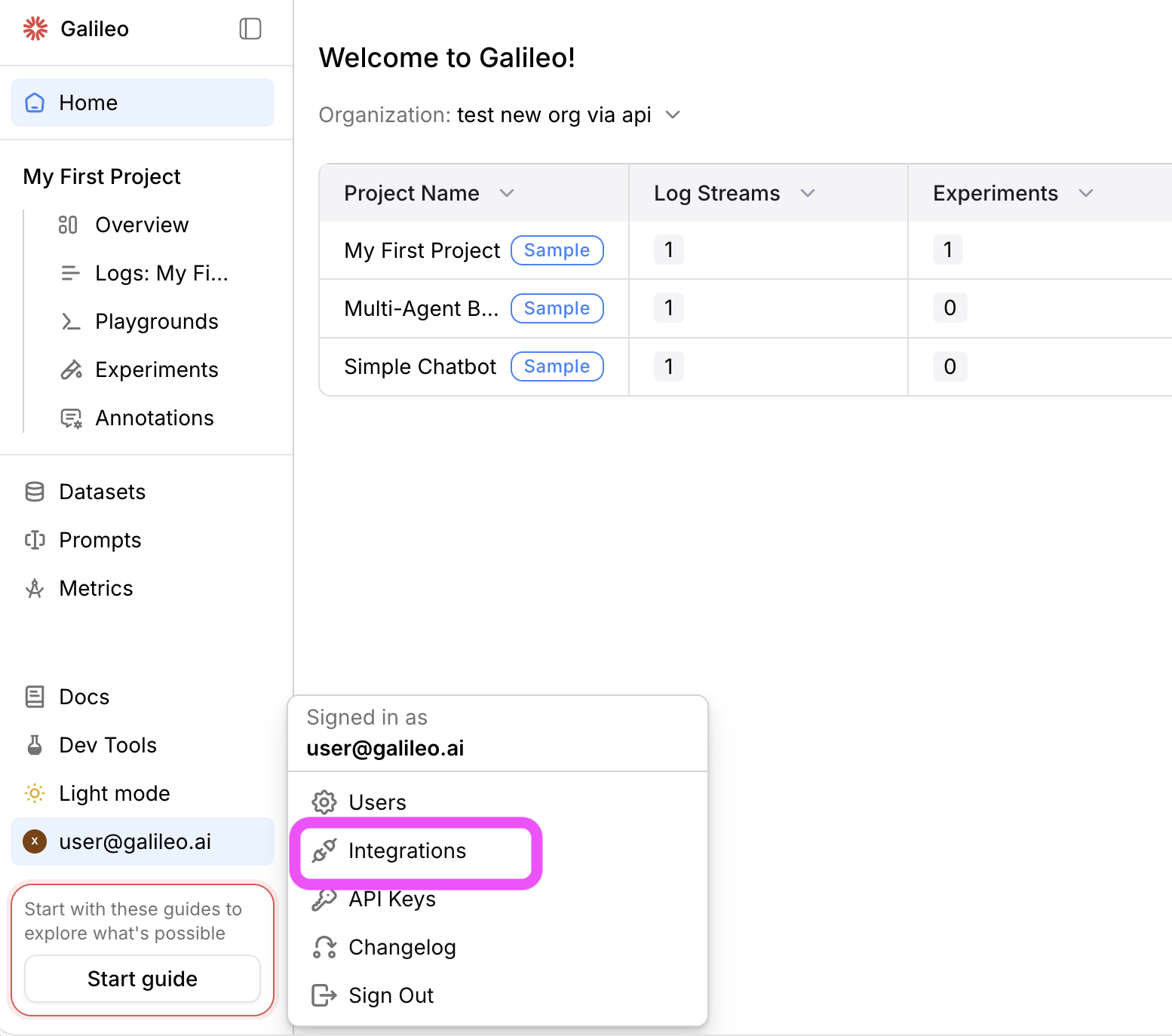
2
Add an integration
Locate the LLM provider you are using (or specify a custom integration), then select the +Add Integration button.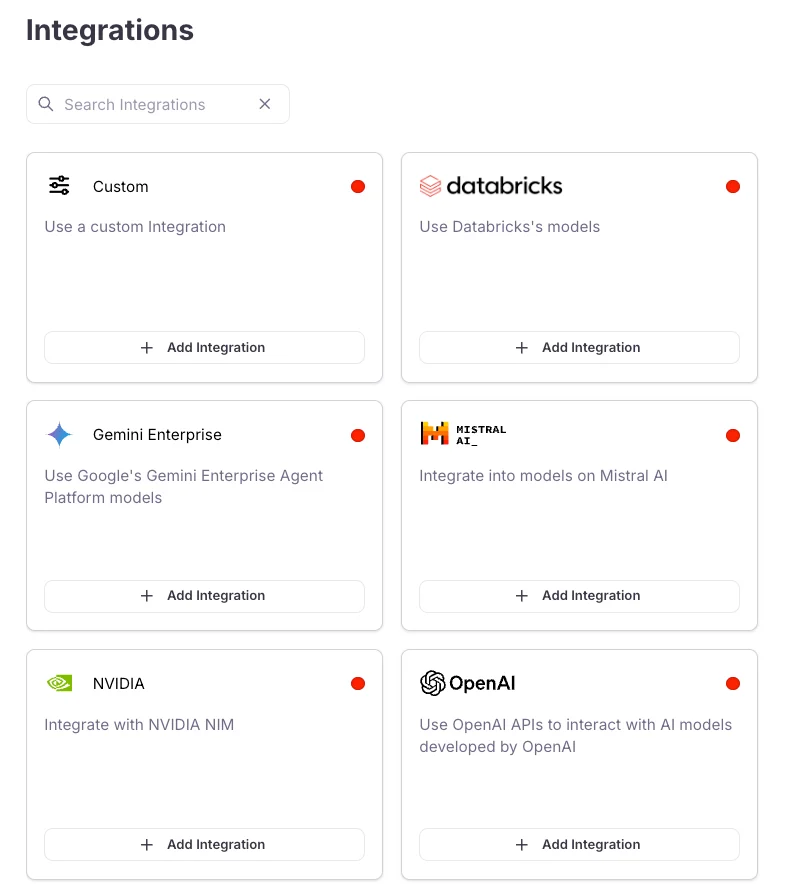
3
Add settings
Specify settings for your integration (such as an API key), then select Save changes.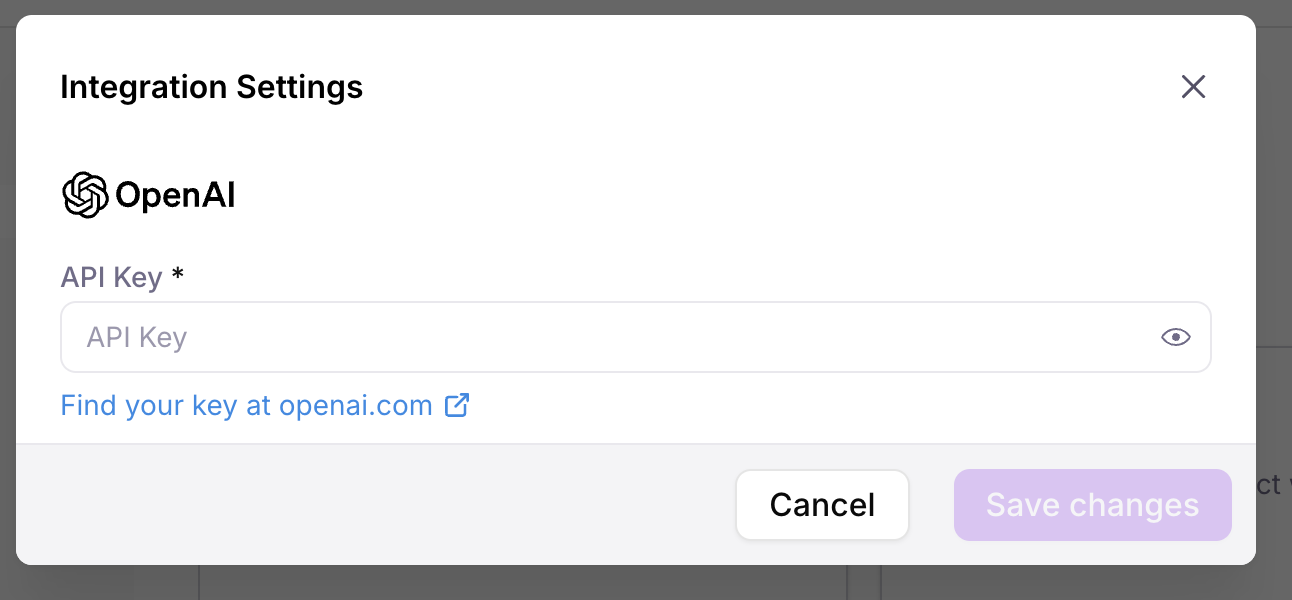
Log a trace with an evaluated metric
1
Enable the context adherence metric on your Log stream
To evaluate the Log stream against context adherence, you need to turn this on for your Log stream.Add the following import statements to the top of your app file:Next add the following code to your app file. If you are using Python, add this after the call to This code will enable the context adherence metric for your Log stream, and this metric will then be calculated for all LLM spans that are logged.
galileo_context.init(). If you are using TypeScript, add this as the first line in the async block.2
Run your application
Now that you have metrics turned on for your Log stream, re-run your application to generate another trace. This time the context adherence metric will be calculated.
3
Open the Log stream in the Galileo console
In the Galileo console, select your project, then select the Log stream.
4
Select the Traces tab
You can see the trace that was just logged in the Traces tab. The context adherence metric will be calculated, showing low score.
5
Get more information on the evaluation
Select the trace to drill down for more information. Select the LLM span, and use the arrow next to the context adherence score to see an explanation of the metric.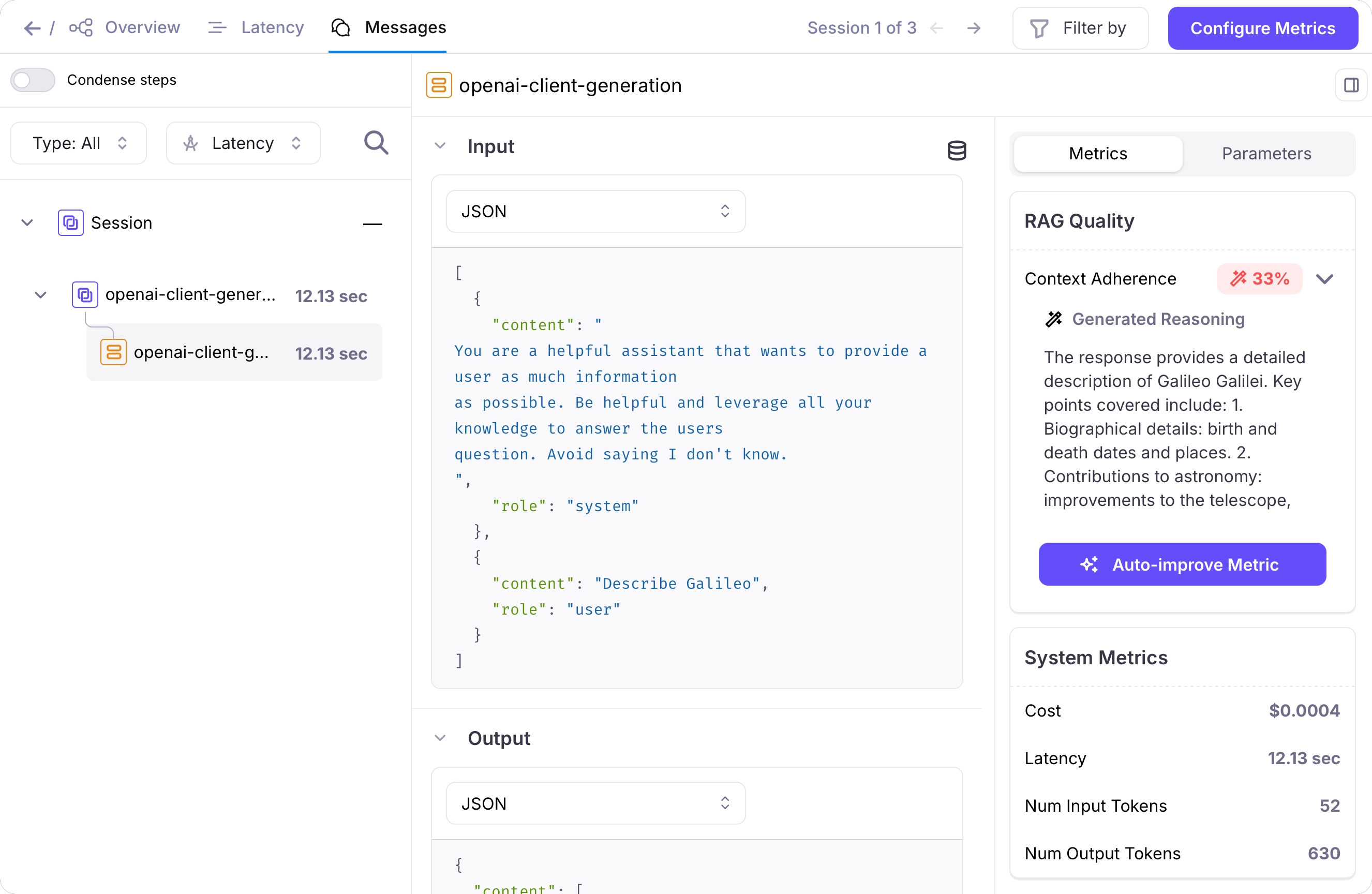
Improve your application
To improve the context adherence score, you can provide relevant context to the LLM in the system.1
Add relevant context to your system prompt
To improve the context adherence, you can add relevant context to the system prompt. This is similar to adding extra information from a RAG system.Update your code, replacing the code to set the system prompt with the following:
2
Run your application
Run your application again to log a new trace.
3
View the results in your terminal
Now the results should show relevant information:
4
Check the new trace
A new trace will have been logged. This time, the context adherence score will be higher. Select the trace to see more details.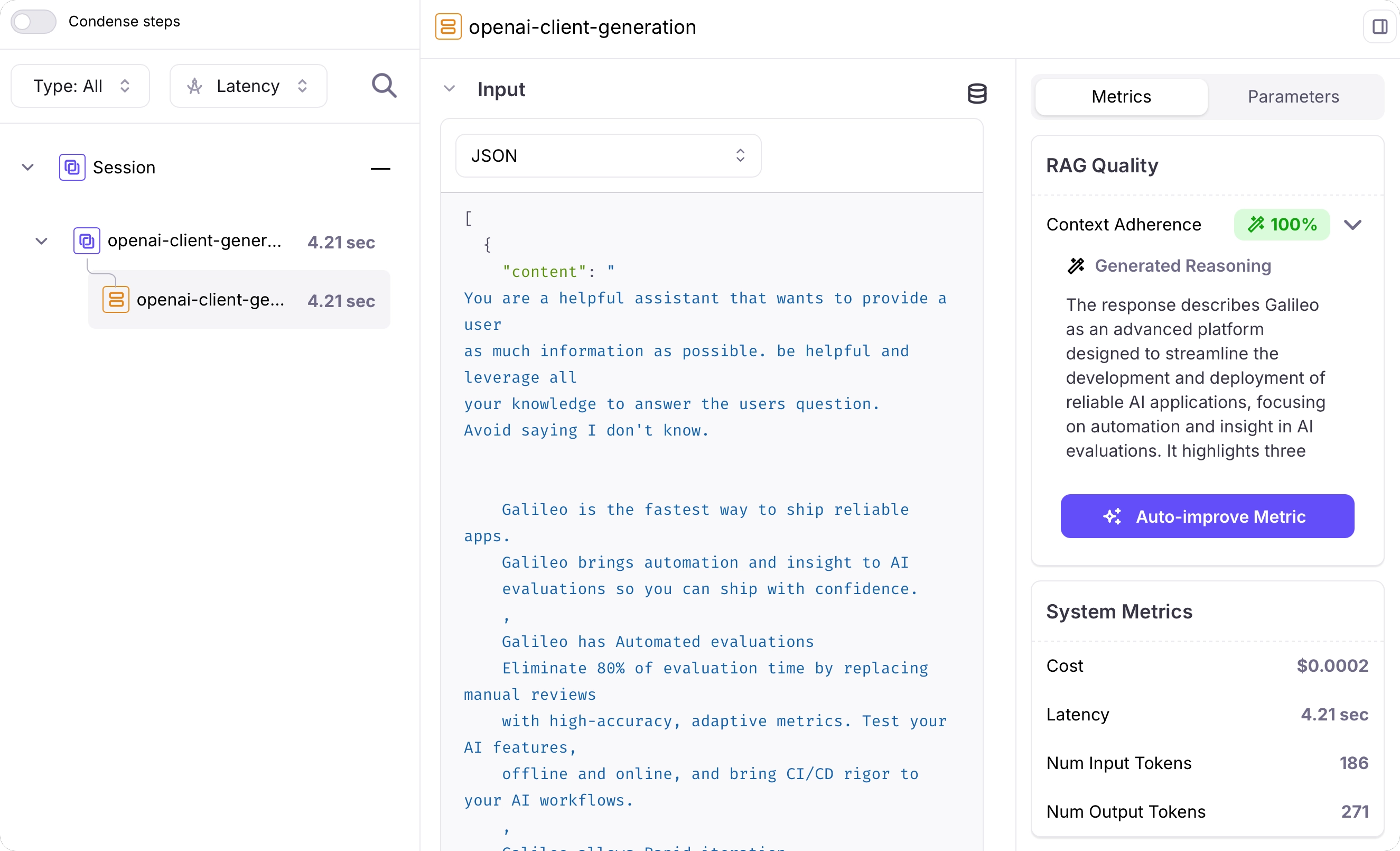
Next steps
Sample projects
Learn how to get started with the Galileo sample projects that are included in every new account.
Integrate with third-party frameworks
Learn about the Galileo integrations with third-party SDKs to automatically log your applications
Cookbooks
Cookbooks
Learn how to perform common tasks with Galileo, work with third-party integrations, and use evaluations to solve AI problems
SDK reference
Python SDK Reference
The Galileo Python SDK reference.
TypeScript SDK Reference
The Galileo TypeScript SDK reference.