

- Galileo API Key (
GALILEO_API_KEY) - Galileo Project (
GALILEO_PROJECT) - Galileo Log stream (
GALILEO_LOG_STREAM)
Galileo API key
You will need your Galileo API key to be able to send traces to a Log stream from your applications or run experiments in code.1
Select the user menu
Select the user menu in the bottom left.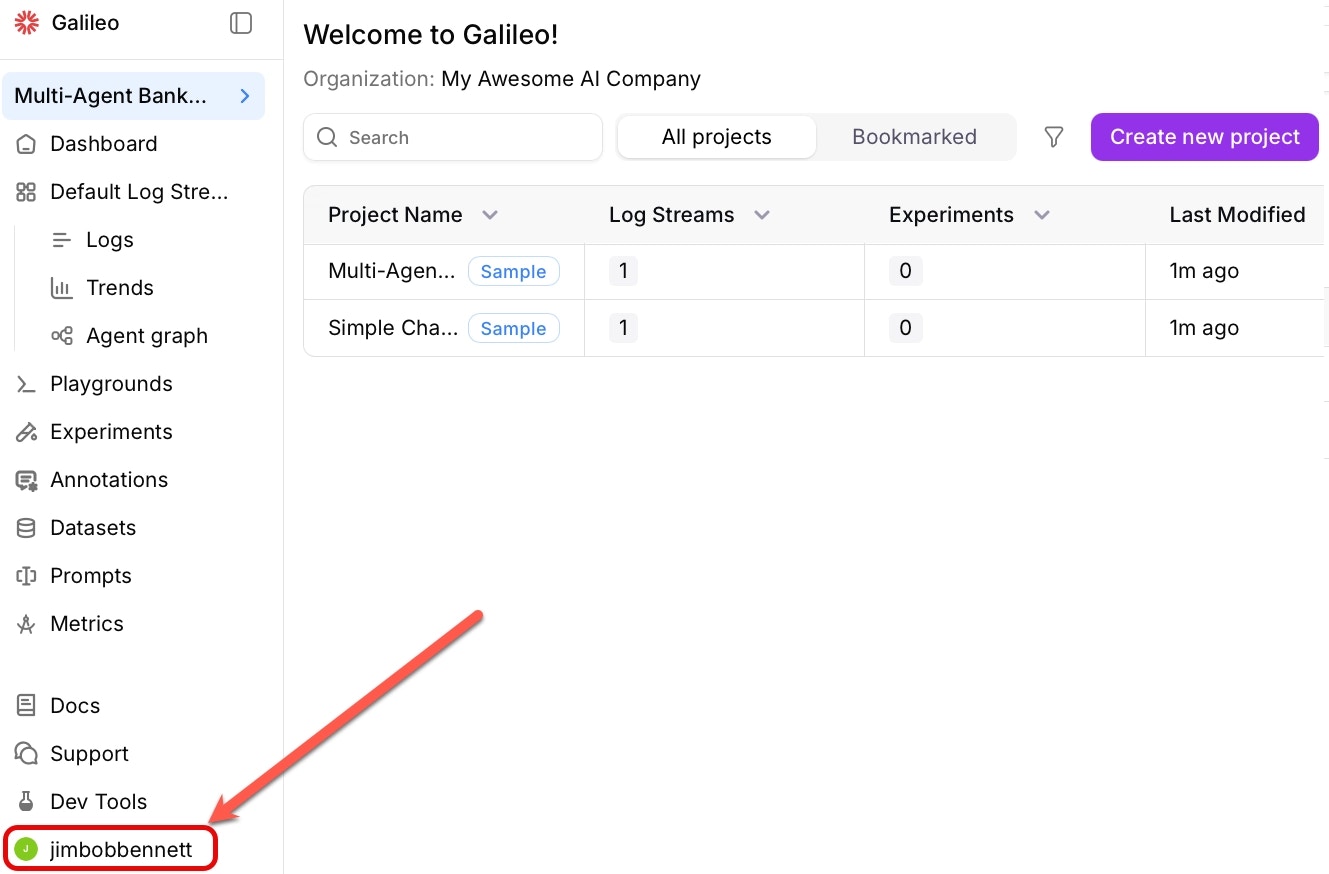
2
Open the API keys page
Select API Keys from the user menu.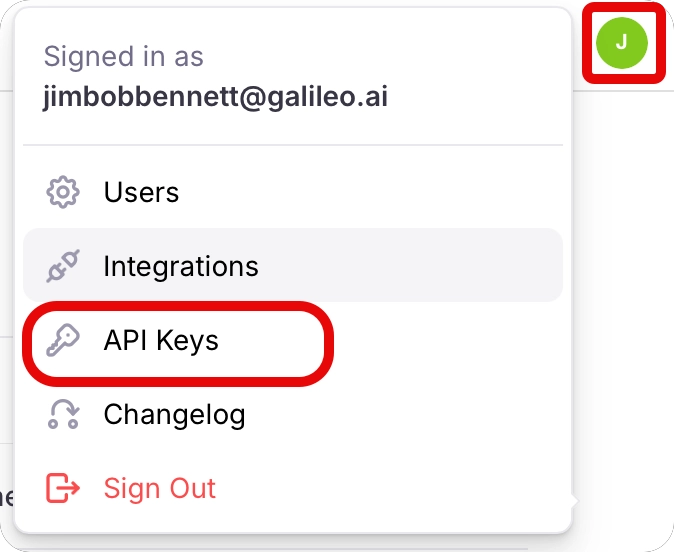
3
Create a new API key
Select the +Create new key button to create a new API key.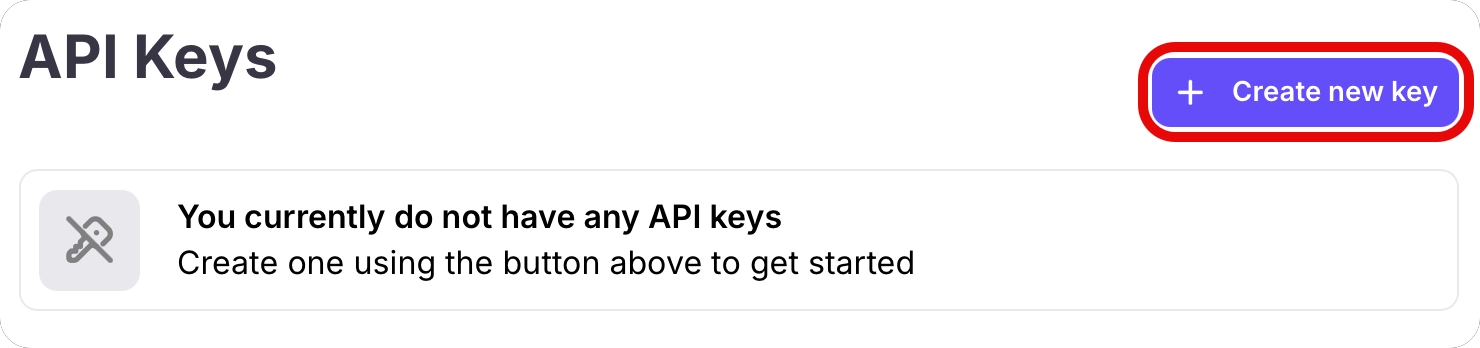
4
Name your API key
Give your API key a name, and optionally set an expiry date. By default API keys expire after a year.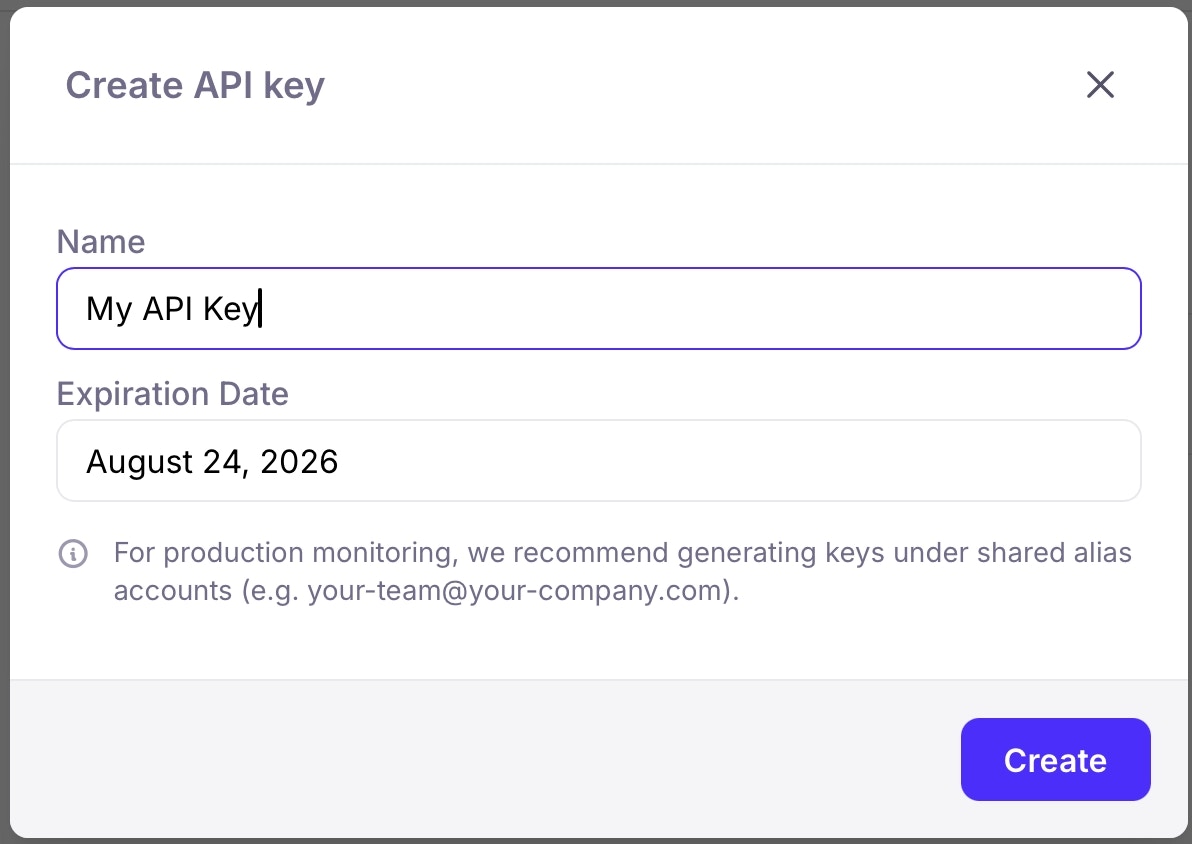
5
Copy your API key
Copy your API key and store it somewhere safe. You will not be able to see this key again.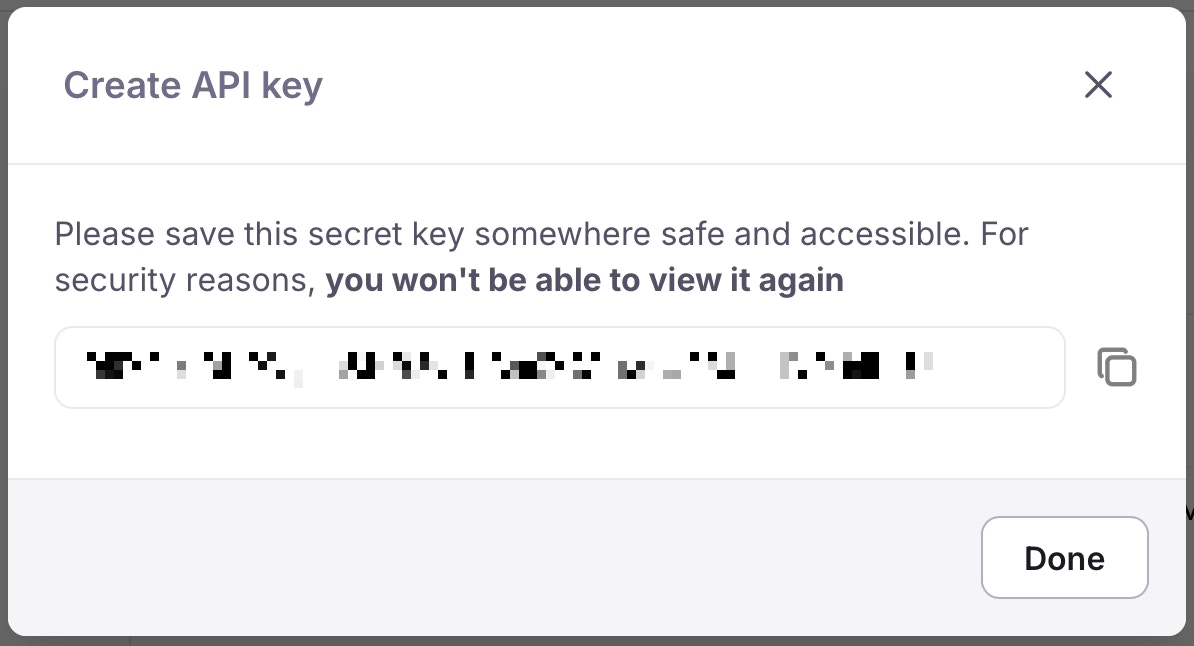
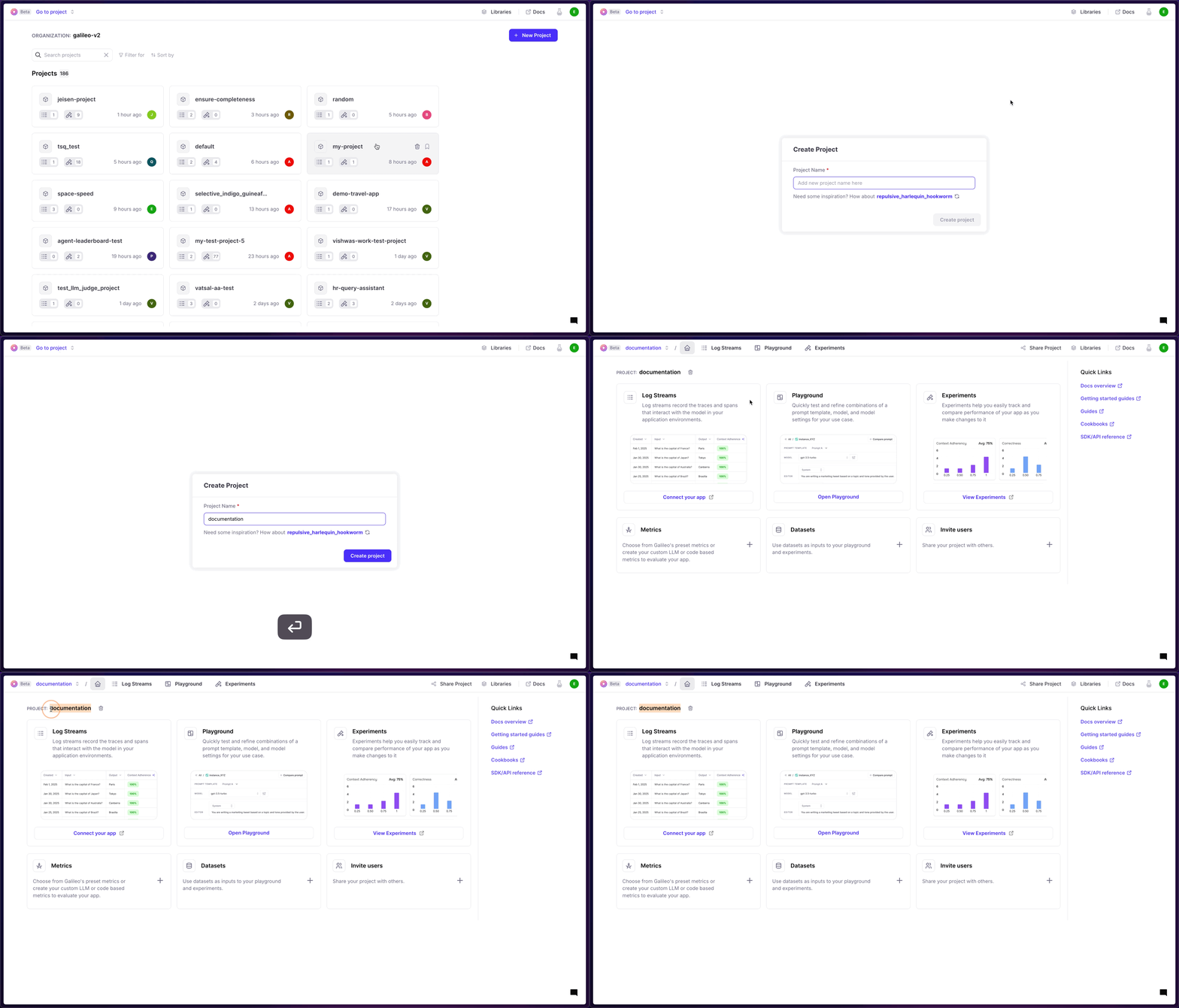
Where do I find my Galileo Project?
Your Galileo Project is the name of the project you create.Below walkthrough is pending update for the current version of Galileo.
Where do I find my Galileo Log stream?
The Galileo Log stream is the name of the specific Log stream that you are looking to record your logs in.Below walkthrough is pending update for the current version of Galileo.
Connect your app from the project home screen.
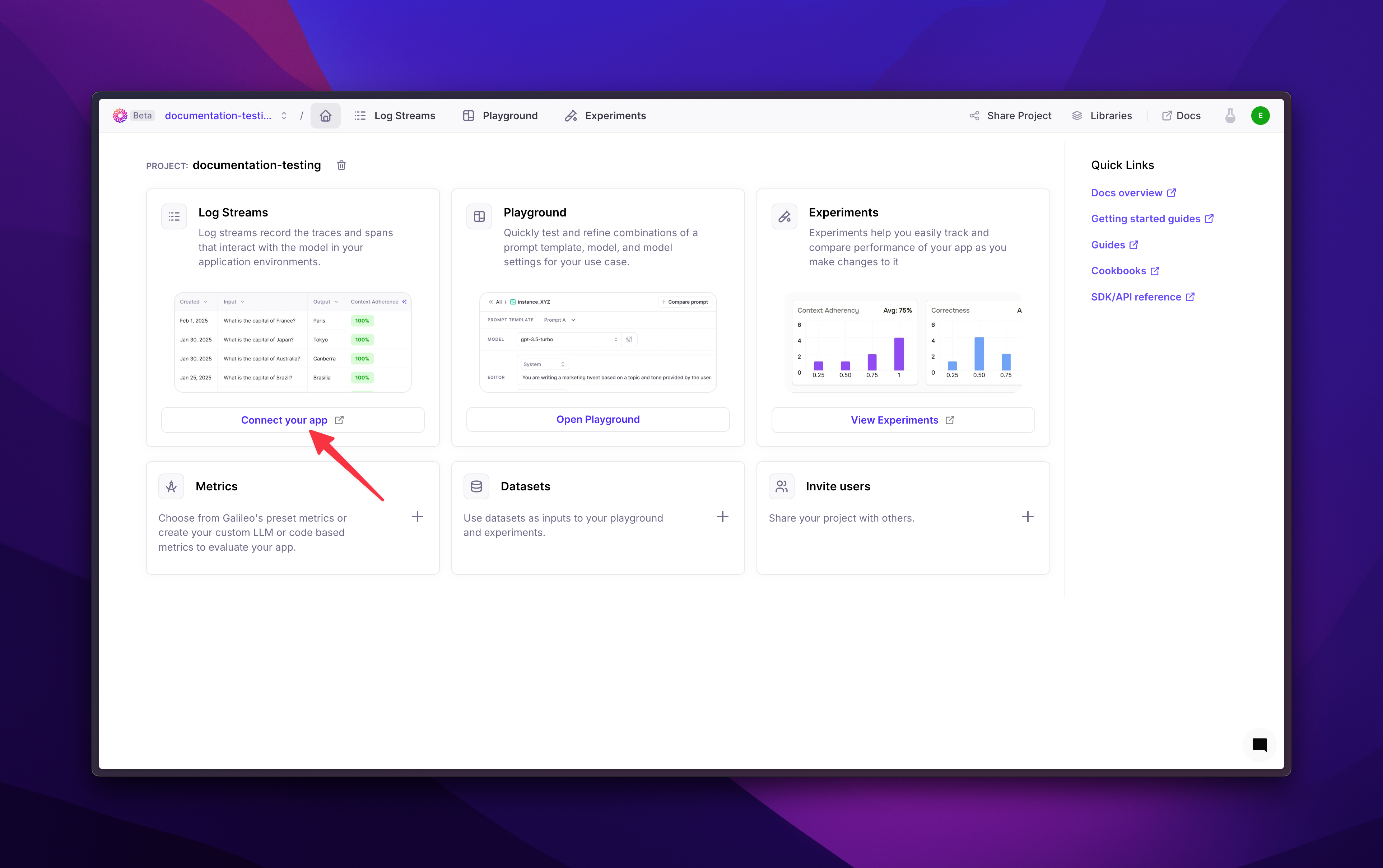
Connect your app button, you’ll see a modal pop up, select Create Log stream
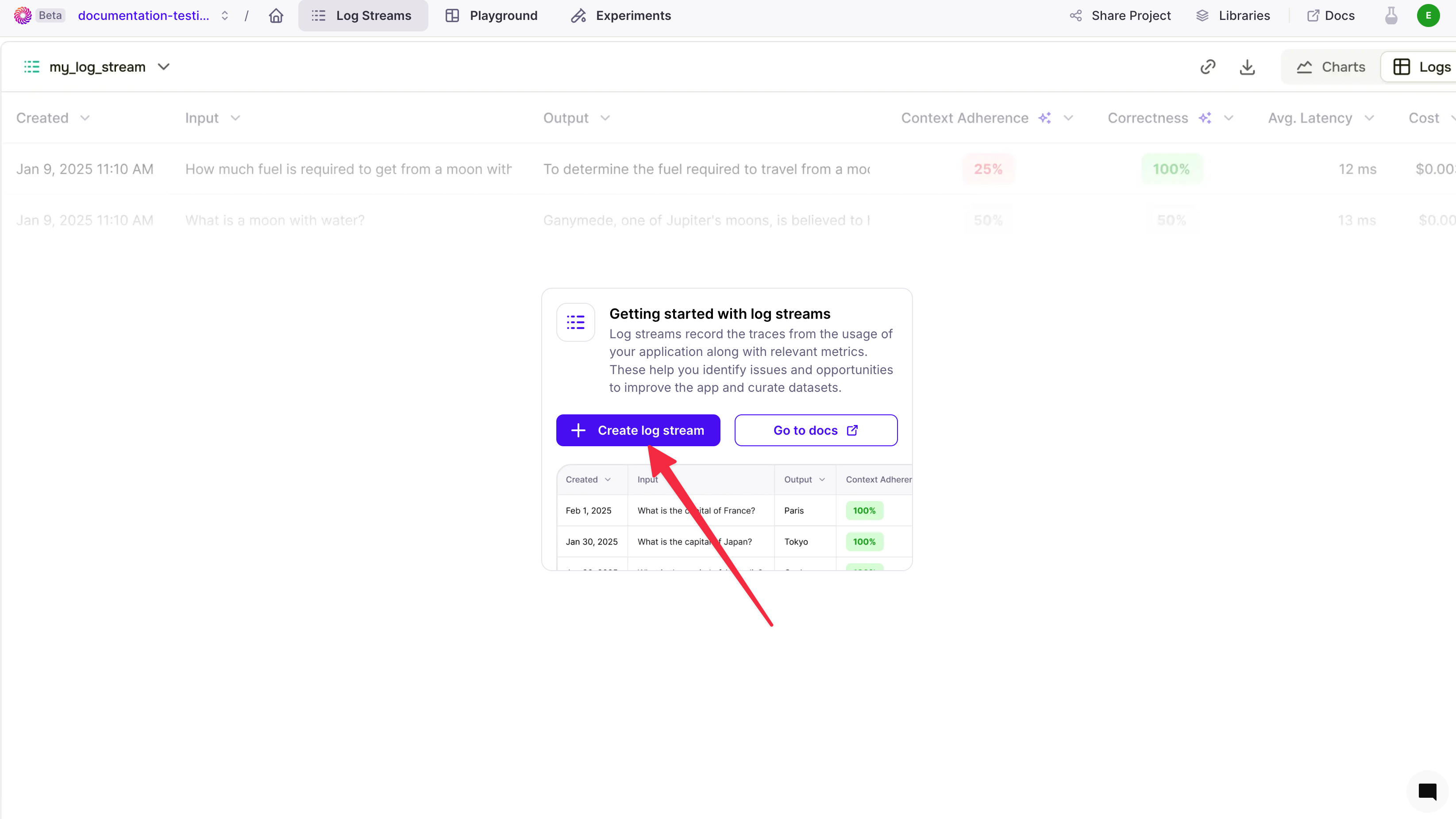 .
Galileo will create a default Log stream with the key
.
Galileo will create a default Log stream with the key my_log_stream please be aware that this key is case-sensitive.
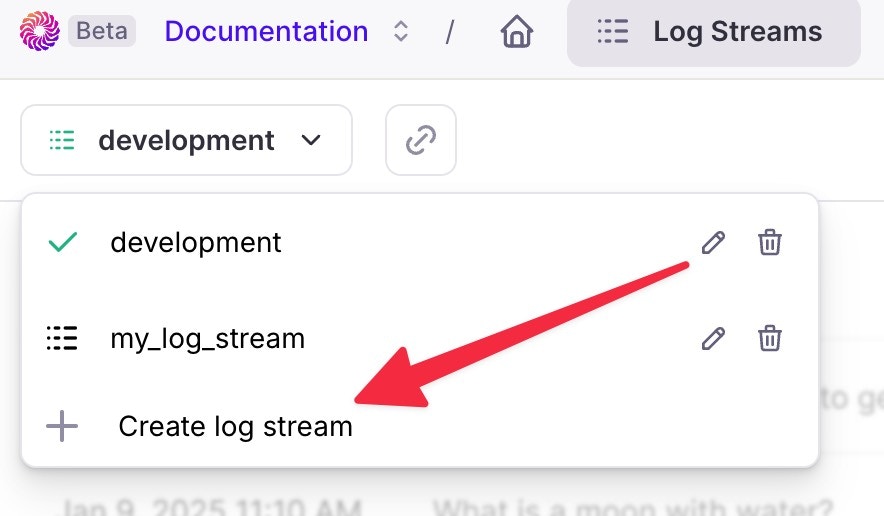
You can create additional Log streams for the same project by navigating to the left-hand side of the screen, toggling down and selecting the Create Log stream button.
Best practices and tips
- Keep your API keys secure and never share them publicly
- Create separate keys for different applications or environments
- Set expiration dates for temporary access
- Regularly rotate keys for enhanced security
- Use descriptive names to track key usage