

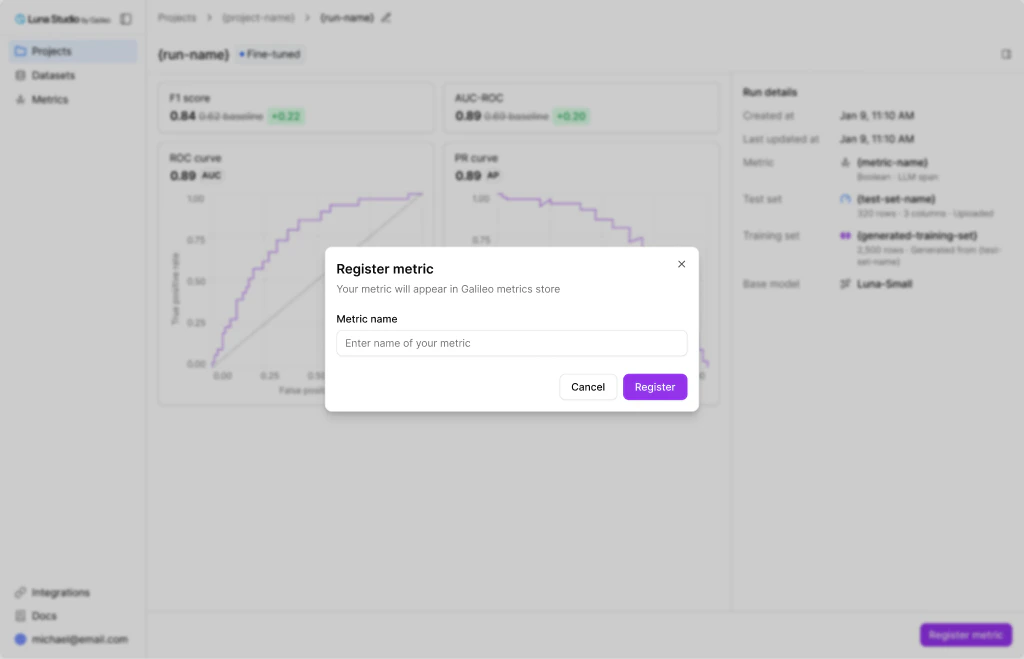
Register metric modal opened from the run details page
Prerequisites
- The run must be in the Fine-tuned status. See Run lifecycle.
- The Luna Studio deployment must have an active Galileo API connection.
- The metric must have a supported registration runtime contract.
Registration eligibility
Full-trace, full-session, and other metric contracts without a supported Galileo runtime are blocked from registration. Context relevance is a separate, registration-only exception keyed to the built-in scorer’s identity. Its prompt depends on retrieved documents, but generic fine-tuned scorer registration would remove that dependency and change what the metric evaluates. Context relevance can therefore be trained and evaluated in Luna Studio, but not registered today. This restriction does not make the RAG metric shape generally ineligible for registration.Where you can register from
The Register metric action appears in three places:- Run details page — primary footer button on Fine-tuned runs.
- Training runs table — an action link on each Fine-tuned row. See Training runs home.
- Metrics page — an action link on each Fine-tuned metric. See Metrics overview.
Steps
1
Click Register metric
From the run details footer, the runs table row, or the metrics page row.
2
Enter a metric name
Use a name that’s clear in the Galileo metrics store, where it’ll sit alongside built-in metrics. Examples:
support-tone-strict, pii-detector-en.3
Click Register
The modal closes. After registration succeeds, the run’s status flips to Registered and the Register metric affordance disappears for that run.
If registration is blocked
On the run details page, read the blocker shown with the disabled footer action. From the Training runs table or Metrics page, read the error that remains in the modal after an unsuccessful submission. Common cases are:- No Galileo connection — ask your deployment operator to configure the Galileo API URL and key.
- Unsupported metric contract — the fine-tuned artifact remains available in Luna Studio, but that metric cannot be published to the Galileo metrics store.
Naming guidance
- Use lowercase with hyphens:
customer-tone-classifier, notCustomer Tone Classifier. - Include the language or domain if relevant:
pii-detector-en,legal-toxicity. - Add version suffixes (
-v1,-v2) if you are registering multiple variants.
Where to go next
Runtime Protection
Use registered metrics in runtime protection workflows.
Invoke runtime protection
Learn how to call Protect from code with the Galileo SDK.
Luna-2
Understand how Luna-based metrics power evaluation and protection.