

The three sources
Pick one card. Only one source can be active at a time.Upload from local
Drag-and-drop a
.csv or .jsonl file from your machine. Use CSV for datasets you plan to use in a run.Fetch from URL
Paste a publicly reachable or pre-signed
http:// or https:// URL.Import from Galileo
Browse datasets in your connected Galileo workspace.
Upload from local
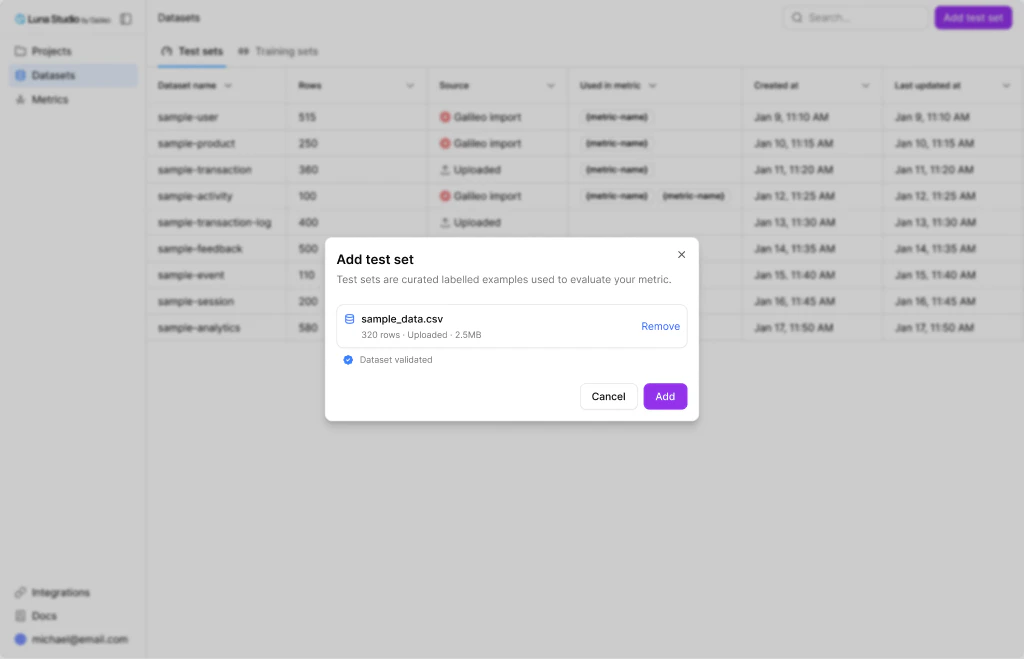
Upload from local — file dropped in, ready to validate and import
1
Pick the Upload from local card
A drop zone replaces the source picker.
2
Drag the file in or click the drop zone
Accepted file types:
.csv and .jsonl. Other types are rejected.3
Click Add
Luna uploads the file and creates the dataset. From the global Datasets page, the modal then closes. In the run wizard, Luna also validates the dataset against the selected metric before attaching it to the run.
Format reference
Use CSV for a dataset that will be selected for a run. Although the source picker accepts.jsonl during ingestion, the current run-validation and data-generation paths read the stored file as CSV. JSONL is therefore not supported end to end yet.
For CSV, the first row is treated as headers. The required feature columns depend on the metric shape; labelled datasets also need a label column. See Prerequisites for the shape-specific contracts.
For example, a Boolean, single-input dataset uses integer 0 and 1 labels:
Fetch from URL
1
Pick the Fetch from URL card
A URL input replaces the source picker.
2
Paste a URL
Only
http:// and https:// URLs are accepted. The URL must resolve to a public host and return the dataset file directly. Use a CSV source for datasets intended for a run.3
Click Add
Luna fetches the file and creates the dataset. Redirects are checked before Luna follows them, and private or internal network targets are blocked. From the global Datasets page, the modal then closes. In the run wizard, Luna also validates the fetched dataset against the selected metric before attaching it to the run.
Authentication for cloud URLs
Raw object-store URIs such ass3:// and gs:// are not supported by URL import. For a private S3 or GCS object, create a time-limited pre-signed HTTPS URL and paste that URL instead. Luna Studio does not attach provider credentials or custom request headers to a URL fetch.
If Luna cannot fetch or safely resolve the URL, the import returns an error. Check that the link is still valid, returns HTTP 200, and is reachable from the Luna Studio service.
Import from Galileo
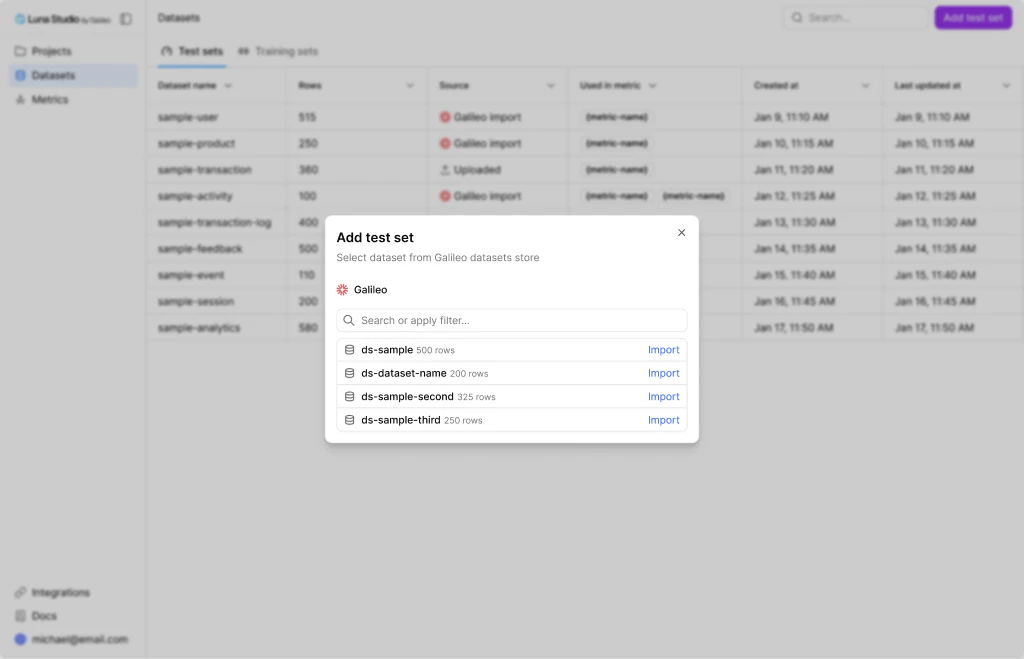
Import from Galileo — browse datasets in your connected Galileo workspace
Galileo connection required. In the current release, importing from Galileo reads the Galileo API URL and key from the Luna Studio deployment. Personal and workspace Galileo integrations saved in the app do not override those runtime settings. See Galileo
integration for setup details.
1
Pick the Import from Galileo card
The Galileo import panel replaces the source picker.If Luna Studio opens an integration prompt but the import still reports that Galileo is not configured, ask your deployment operator to configure the backend Galileo API URL and key. See Galileo integration.
2
Search for the dataset
Type into the search input. Each row in the list shows the dataset name plus a row count.
3
Click Import on a row
Each row has its own Import action — clicking it imports that dataset into Luna Studio. The modal closes immediately after import (no separate Add button is shown for Galileo).
What if the integration is removed mid-flow?
If you cancel the integration modal that pops up before the import panel, the source selection is cleared and you can pick a different source.Validation
Adding a dataset from the global Datasets page ingests and stores it without a selected metric. That flow cannot apply the metric-specific column, label-type, and row-threshold contract. When you add or choose a dataset in Step 2 or Step 3 of the run wizard, Luna Studio has the metric context and runs the applicable test-set, training-set, or label-only checks. A dataset that uploads successfully can still fail this run-specific validation. If that happens, the dataset remains available on the Datasets page, but Luna Studio does not attach it to the current run. For the full validation rules, see Validation.Where to go next
Test sets
Schema rules and best practices for evaluation data.
Training sets
Schema rules and best practices for fine-tuning data.
Validation
What Luna checks and what to do when validation fails.
Galileo integration
Deployment connection required for Import from Galileo.