

The three training dataset sources
The step opens with a section heading Training data source and three selectable cards:Generate from test set
Uses 20% of your test set as seed examples and targets 2,000 synthetic labelled examples. Recommended for first runs.
Add training logs
Upload or import production logs. If labels are missing, you can explicitly start a metric-prompt labelling pass.
Use existing training set
Reuse a previously generated, labelled, or uploaded training dataset from your workspace.
Generate from test set
This option creates a training set from your test set in three steps:- Configure generation and generate a sample dataset
- Review 50 sample rows and provide feedback to the generator
- Request the full generation, targeting 2,000 synthetic examples, once you are happy with the samples
Configure the generator
Configure generation with the following settings: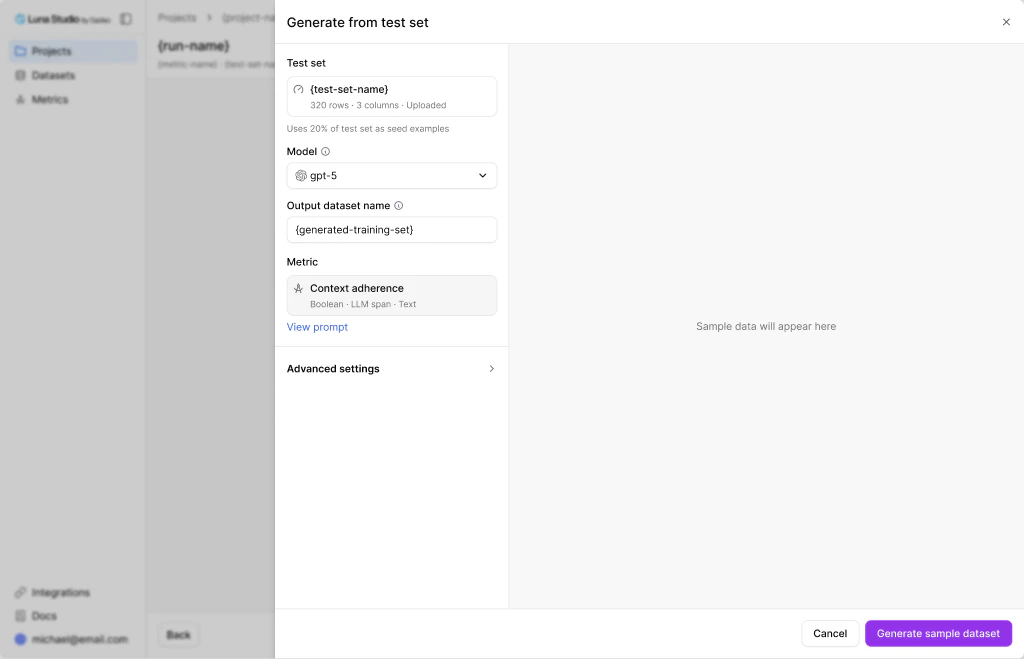
Generate from test set drawer, configure phase — pick a model and dataset name before generating samples
Click Generate sample dataset at the bottom of the drawer, once you are happy with the settings.
Review the sample data
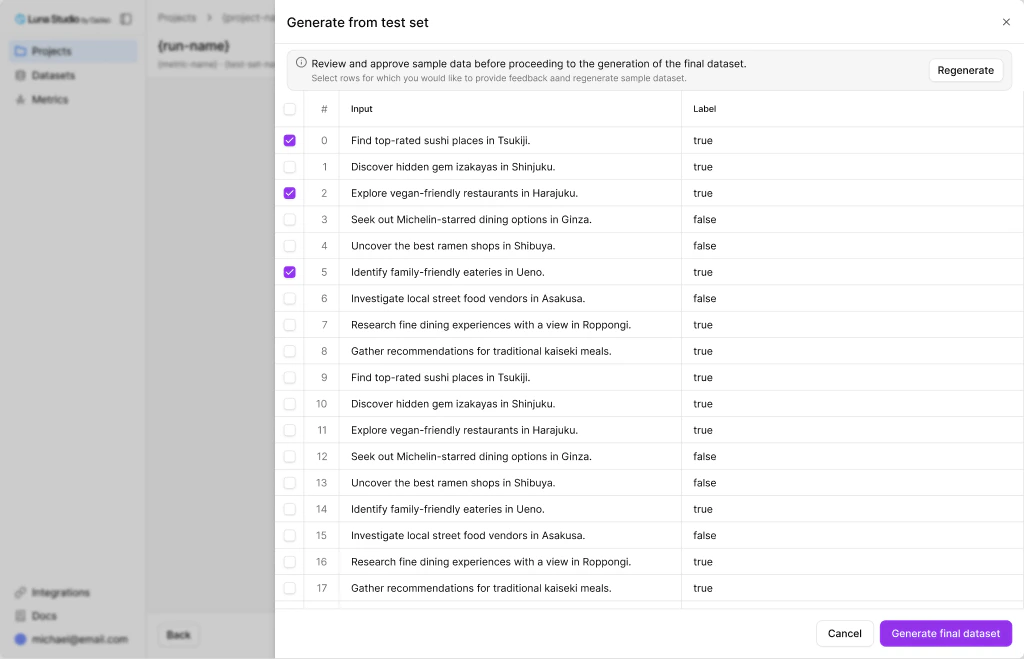
Generate from test set drawer, review phase — approve sample rows or regenerate before kicking off the full run
Provide feedback and Regenerate samples
You can provide feedback by selecting the rows that look wrong and clicking the Regenerate button. Once you click the button, the Regenerate dataset modal opens with a radio group of reasons:
Click Regenerate to kick off another sample generation.
The Regenerate button in the modal stays disabled until either a reason is picked or, for “Provide own feedback”, the text is non-empty.
You can repeat the feedback and regeneration cycle as needed. Luna Studio tracks the cycles in the UI.
Generate the final dataset
Once you’re happy with the samples, the footer button changes to Generate final dataset. Clicking it requests 2,000 synthetic examples. Enhancement examples derived from the seed data can then be appended, so the final training split can contain more than 2,000 rows. When generation completes, the drawer closes and Step 3 shows the Training set completed view (see below).Add training logs
The Add training logs path uploads or imports your own production logs. Clicking the card opens the Add training set modal — the same generic dataset source modal used elsewhere in the app, with three sources:Upload from local
Drag-and-drop a
.csv or .jsonl file. Use CSV for end-to-end run processing.Fetch from URL
Paste a publicly reachable or pre-signed
http:// or https:// URL.Import from Galileo
Browse datasets in your connected Galileo workspace.
label is the only missing required column, choose Label with metric prompt instead. Luna Studio then opens the label-only generation drawer, where you configure a provider and model and explicitly start labelling. The resulting labelled dataset—not the raw upload—is used for training.
The labelled training set must contain at least 2,000 rows total and at least 100 examples per class. If you fetch from private object storage, use a pre-signed HTTPS URL; raw s3:// and gs:// URIs are not supported.
Use existing training set
The Use existing training set path lets you pick a previously generated, labelled, or uploaded training dataset from this workspace without regenerating data or importing a new file.Validation
Luna Studio validates a selected training set against the metric-specific schema, label type, and row thresholds before attaching it to the run. If there are validation errors, they are highlighted. A dataset can remain available on the global Datasets page even when it is rejected for this run. For more details, see Validation.Training set completed
After either flow finishes, the step replaces the picker with a Selected dataset card and (if available) a preview table.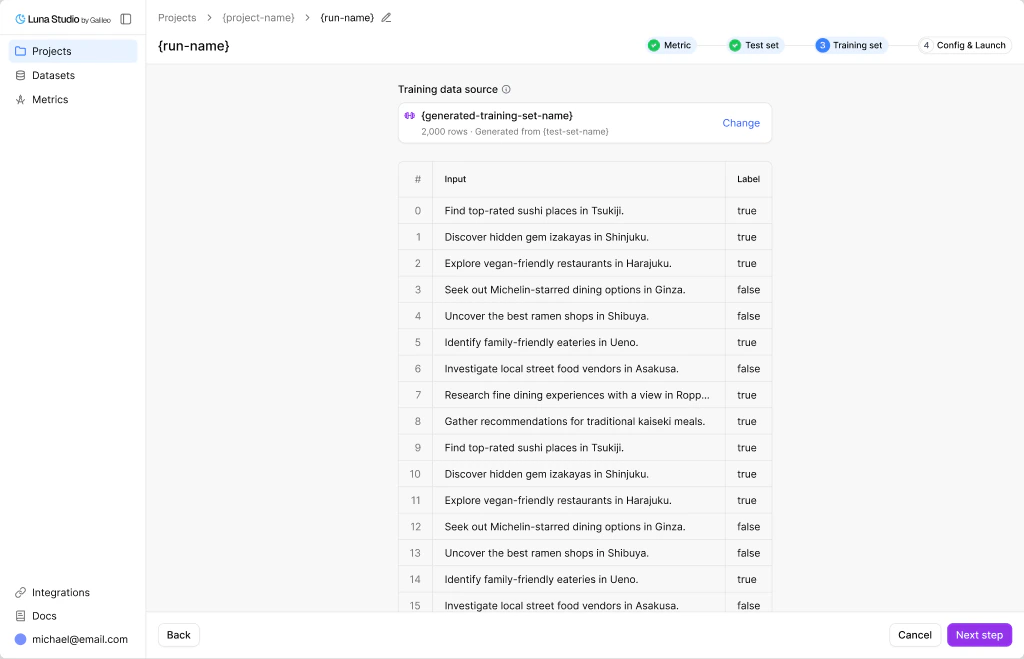
Step 3 once a training set is selected — the picker collapses into a card with a row preview
Where to go next
Step 4 — Config and launch
Pick a base model and launch.
Training sets reference
Schema, validation rules, and sources.